Windows PC Keeps Dropping Wi-Fi? Fix It Step by Step
📅 25 July 2026⏱ 4 min read🔧 PC Repair
You're mid-video-call, mid-email, or just browsing — and Windows loses the Wi-Fi connection. You reconnect. Ten minutes later, it drops again. It's one of the most common complaints we hear from residents and expats on the Costa Blanca, and the good news is that in the majority of cases you can fix it yourself without touching a single wire.
This guide walks you through the real causes, in order of how likely they are, so you're not wasting an hour on the wrong fix.
Why Does Windows Keep Dropping Wi-Fi?
There are four main culprits, and they have nothing to do with your internet provider (usually). They are:
Windows power saving switching off your Wi-Fi adapter — the single most common cause
Outdated or corrupted network adapter drivers
Windows automatically connecting to a weaker network
A problem with the router itself — less common but worth ruling out
Step 1: Turn Off Wi-Fi Power Saving (Do This First)
Windows tries to save energy by shutting down the Wi-Fi adapter when it thinks you're idle. This is the number-one cause of random disconnections — and it takes under two minutes to fix.
Press Windows key + X and click Device Manager.
Expand Network Adapters, right-click your Wi-Fi adapter (it usually has "Wireless" or "Wi-Fi" in the name), and choose Properties.
Click the Power Management tab.
Untick the box that says "Allow the computer to turn off this device to save power."
Click OK and restart.
If the disconnections stop after this, you're done. Seriously — it's that simple for most people.
Step 2: Update Your Network Adapter Driver
A driver is the small piece of software that lets Windows talk to your Wi-Fi hardware. Old or corrupt drivers cause all sorts of connection problems, especially after a Windows update.
In Device Manager, right-click your Wi-Fi adapter again and choose Update Driver.
Select Search automatically for drivers. Windows will check online.
If nothing is found, visit your laptop manufacturer's website (Dell, HP, Lenovo, ASUS, etc.) and download the latest Wi-Fi driver for your exact model.
Not sure which laptop model you have? Press Windows key + R, type msinfo32, press Enter, and look at System Model.
Step 3: Stop Windows Jumping to a Weaker Network
If you have more than one Wi-Fi network saved on your PC — say, your home network, a neighbour's guest network you once joined, or an old router — Windows sometimes switches to a weaker one automatically. The fix is to remove networks you no longer use.
Go to Settings → Network & Internet → Wi-Fi → Manage known networks.
Click on any network you don't use and hit Forget.
Keep only your current home network saved.
Step 4: Reset Your Network Settings in Windows
If you've tried everything above and the problem persists, Windows itself may have a corrupted network configuration. Open Command Prompt as Administrator (search for "cmd", right-click, Run as administrator) and type each of these lines, pressing Enter after each one:
netsh winsock reset
netsh int ip reset
ipconfig /flushdns
Restart your PC afterwards. This clears out any broken network settings without affecting your files or programmes.
Step 5: Check the Router
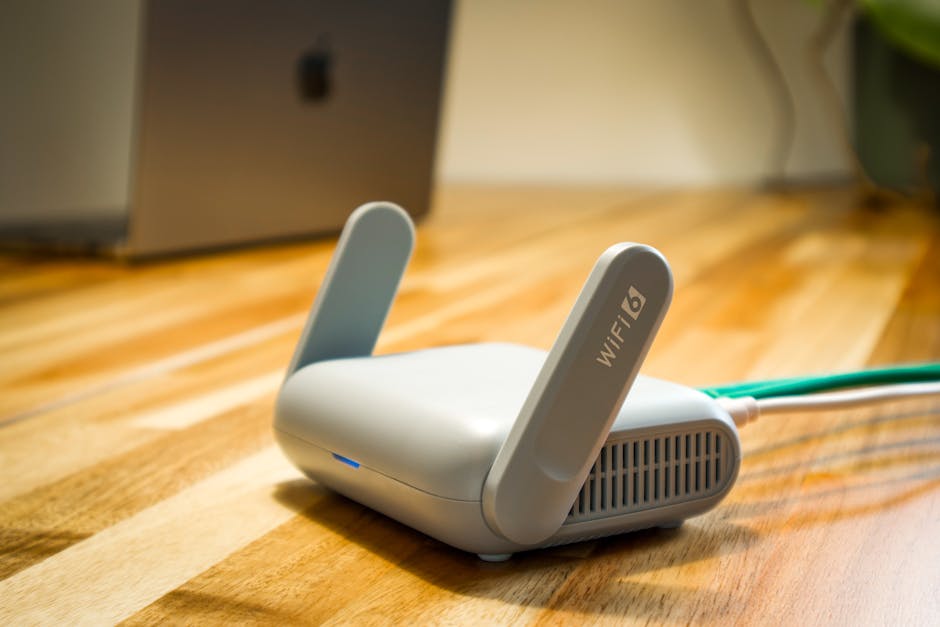
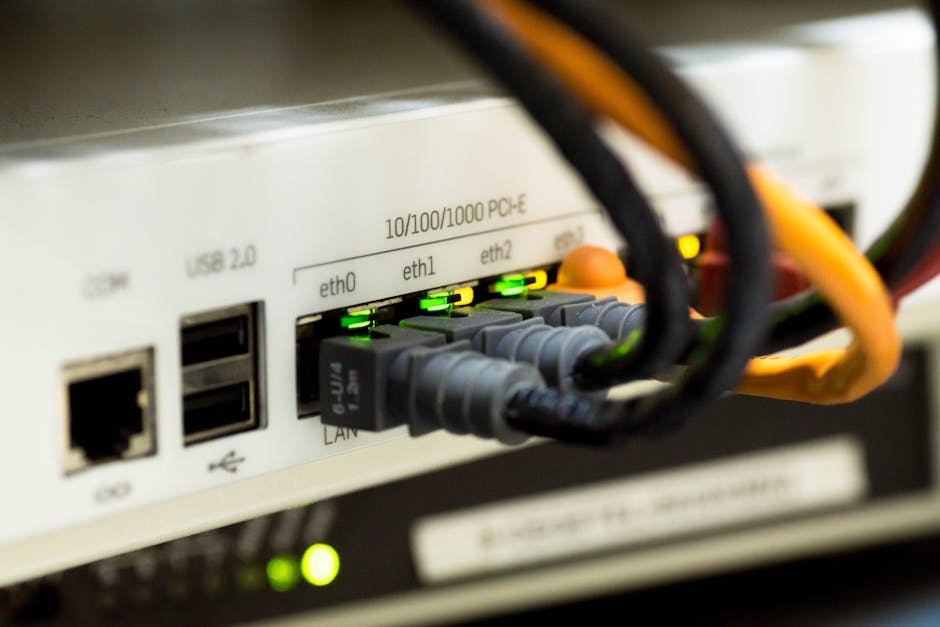
If only your Windows PC drops the connection — but phones and tablets stay connected — the issue is almost certainly the PC, not the router. But if all devices drop off, the router is likely overheating or needs a simple restart.
Unplug the router from the mains, wait 30 seconds, plug it back in and give it two minutes to fully restart. If this fixes it temporarily but the problem keeps coming back, the router may be failing — worth a call to your provider (Movistar, Orange, Vodafone, or whichever local ISP you're with).
A Note on Spain-Specific Wi-Fi Issues
In Pinar de Campoverde and along the Costa Blanca, many homes use routers provided by Spanish ISPs that sit in a cabinet or hallway far from the living area. If your PC is at the far end of the house, a weak signal can look exactly like a driver or power problem. Check your signal strength — if it's below two bars, the solution may simply be a Wi-Fi range extender or a powerline adapter, not a software fix.
If you've worked through all five steps and you're still dropping out, it may be time to bring the laptop in. Sometimes the Wi-Fi card itself is failing — we see this fairly often with laptops that are three to five years old. It's usually a straightforward repair. Have a look at our post on 5 warning signs your laptop needs a repair to see if there's anything else going on.
Summary
Most Windows Wi-Fi drop-outs on the Costa Blanca come down to one of four things: power management, an old driver, Windows jumping networks, or a dodgy router. Work through the steps above in order and you'll almost certainly find the fix. No need to panic, and no need to call your ISP for 45 minutes — at least not yet.
FAQ
Why does my Windows PC keep disconnecting from Wi-Fi but my phone stays connected?
This almost always points to the PC itself, not the router. The most likely causes are Windows power management shutting down the Wi-Fi adapter, or an outdated network driver. Follow Steps 1 and 2 in this guide first.
Will resetting network settings delete my files or passwords?
No. The netsh and ipconfig commands only reset network configuration — they do not touch your personal files, documents, or saved browser passwords.
My Wi-Fi drops every few hours exactly. What does that mean?
Intermittent drops on a regular timer are a classic sign of Windows power management cutting the adapter. Go straight to Step 1 and disable the power-saving option for your Wi-Fi adapter.
Can a Spanish ISP router cause Wi-Fi problems on Windows?
Yes, especially older Movistar or Orange-supplied routers. If all devices on the network drop at the same time, restart the router and check its ventilation — Spanish summers mean routers in enclosed cabinets overheat easily. If it keeps happening, report it to your ISP.
Estás en mitad de una videollamada, escribiendo un correo o simplemente navegando, y Windows pierde la conexión Wi-Fi. La reconectas. Diez minutos después, vuelve a caerse. Es una de las quejas más habituales que recibimos de residentes y expatriados en la Costa Blanca, y la buena noticia es que en la mayoría de los casos puedes solucionarlo tú mismo sin tocar ningún cable.
Esta guía repasa las causas reales, ordenadas de más a menos probable, para que no pierdas una hora arreglando lo que no es.
¿Por qué Windows pierde el Wi-Fi constantemente?
Hay cuatro causas principales, y la mayoría no tienen nada que ver con tu operadora (o casi nunca). Son:
El ahorro de energía de Windows desactiva el adaptador Wi-Fi — la causa más frecuente con diferencia
Controladores (drivers) de red desactualizados o dañados
Windows se conecta automáticamente a una red más débil
Un problema con el router — menos habitual, pero hay que descartarlo
Paso 1: Desactiva el ahorro de energía del Wi-Fi (empieza aquí)
Windows intenta ahorrar batería apagando el adaptador Wi-Fi cuando detecta que no lo estás usando. Esta es la causa número uno de las desconexiones aleatorias, y tardarás menos de dos minutos en solucionarla.
Pulsa Tecla Windows + X y haz clic en Administrador de dispositivos.
Despliega Adaptadores de red, haz clic derecho sobre tu adaptador Wi-Fi (suele llevar la palabra «Wireless» o «Wi-Fi» en el nombre) y selecciona Propiedades.
Ve a la pestaña Administración de energía.
Desmarca la casilla que dice «Permitir que el equipo apague este dispositivo para ahorrar energía».
Haz clic en Aceptar y reinicia el equipo.
Si después de esto desaparecen las desconexiones, ya está. Así de sencillo es para la mayoría de la gente.
Paso 2: Actualiza el driver del adaptador de red
El driver (controlador) es el pequeño programa que permite que Windows se comunique con el hardware Wi-Fi. Los drivers obsoletos o dañados generan todo tipo de problemas de conexión, especialmente tras una actualización de Windows.
En el Administrador de dispositivos, vuelve a hacer clic derecho sobre tu adaptador Wi-Fi y elige Actualizar controlador.
Selecciona Buscar controladores automáticamente. Windows lo buscará en internet.
Si no encuentra nada, entra en la web del fabricante de tu portátil (Dell, HP, Lenovo, ASUS, etc.) y descarga el driver Wi-Fi más reciente para tu modelo exacto.
¿No sabes qué modelo tienes? Pulsa Tecla Windows + R, escribe msinfo32, pulsa Intro y mira el campo Modelo del sistema.
Paso 3: Evita que Windows salte a una red más débil
Si tienes más de una red Wi-Fi guardada en el PC — la de casa, la red de invitados del vecino a la que te conectaste una vez, un router antiguo — Windows a veces cambia automáticamente a una señal más débil. La solución es eliminar las redes que ya no usas.
Ve a Configuración → Red e Internet → Wi-Fi → Administrar redes conocidas.
Haz clic sobre cada red que ya no utilices y pulsa Olvidar.
Deja guardada únicamente tu red doméstica actual.
Paso 4: Restablece la configuración de red de Windows
Si has probado todo lo anterior y el problema persiste, es posible que Windows tenga una configuración de red dañada. Abre el Símbolo del sistema como Administrador (busca «cmd», haz clic derecho y elige Ejecutar como administrador) y escribe cada uno de estos comandos, pulsando Intro después de cada uno:
netsh winsock reset
netsh int ip reset
ipconfig /flushdns
Reinicia el PC cuando termines. Esto elimina cualquier configuración de red rota sin afectar a tus archivos ni programas.
Paso 5: Comprueba el router
Si solo tu PC con Windows pierde la conexión, pero el móvil y la tablet siguen conectados, el problema está casi con toda seguridad en el PC, no en el router. Pero si todos los dispositivos se desconectan a la vez, el router es el responsable — probablemente se está sobrecalentando o simplemente necesita reiniciarse.
Desenchufa el router de la corriente, espera 30 segundos, vuelve a enchufarlo y dale dos minutos para arrancar del todo. Si esto lo soluciona de forma temporal pero el problema reaparece, el router puede estar fallando — merece la pena llamar a tu operadora (Movistar, Orange, Vodafone o la que tengas contratada).
Un apunte sobre el Wi-Fi en España
En Pinar de Campoverde y en toda la Costa Blanca, muchas viviendas tienen el router en un armario o en el pasillo de entrada, lejos del salón o del despacho. Si tu PC está en el extremo opuesto de la casa, una señal débil puede parecer exactamente un problema de driver o de energía. Comprueba la intensidad de la señal: si tienes menos de dos barras, la solución puede ser simplemente un repetidor Wi-Fi o un adaptador por línea eléctrica (powerline), y no un arreglo de software.
Si has seguido los cinco pasos y sigues perdiendo la conexión, puede que sea el momento de traer el portátil. A veces la tarjeta Wi-Fi interna empieza a fallar — lo vemos con bastante frecuencia en portátiles de entre tres y cinco años. Suele ser una reparación sencilla. Echa un vistazo a nuestro artículo sobre 5 señales de que tu portátil necesita reparación para ver si hay algo más que esté fallando.
Resumen
La mayoría de las caídas de Wi-Fi en Windows en la Costa Blanca se deben a una de estas cuatro cosas: gestión de energía, un driver desactualizado, Windows saltando a otra red o un router con problemas. Sigue los pasos anteriores en orden y casi seguro darás con la solución. Sin necesidad de entrar en pánico ni de esperar cuarenta y cinco minutos al teléfono con tu operadora — al menos por ahora.
Preguntas frecuentes
¿Por qué mi PC con Windows pierde el Wi-Fi pero el móvil sigue conectado?
Esto apunta casi siempre al propio PC, no al router. Las causas más probables son la gestión de energía de Windows apagando el adaptador Wi-Fi, o un driver de red desactualizado. Sigue primero los pasos 1 y 2 de esta guía.
¿Restablecer la configuración de red borrará mis archivos o contraseñas?
No. Los comandos netsh e ipconfig solo reinician la configuración de red — no afectan a tus archivos personales, documentos ni contraseñas guardadas en el navegador.
El Wi-Fi se corta cada pocas horas, siempre igual. ¿Qué significa?
Las caídas intermitentes con una cadencia regular son un síntoma clásico de que Windows está apagando el adaptador por ahorro de energía. Ve directamente al Paso 1 y desactiva esa opción para tu adaptador Wi-Fi.
¿Puede el router de una operadora española causar problemas de Wi-Fi en Windows?
Sí, sobre todo con routers más antiguos de Movistar u Orange. Si todos los dispositivos de la red se desconectan a la vez, reinicia el router y comprueba que tenga ventilación — en verano, los routers dentro de armarios cerrados se sobrecalientan con facilidad. Si el problema persiste, repórtalo a tu operadora.
Computer trouble on the Costa Blanca?
30+ years of repair experience — on-site within 30 km and remote worldwide. Tell me what's wrong and I'll sort it.