You press the power button and… nothing. No fan, no beep, no flicker of light. Or maybe the machine powers up for a second and immediately dies. Either way, it's a sickening feeling — especially if your work, photos, or finances live on that computer.
The good news: a PC that won't turn on is not automatically a death sentence for your data or your wallet. Many causes are simple, and you can rule out quite a few of them right now, at home, without opening a single screw.
Start here: the basics you'd be embarrassed to miss
Before you panic, check these — genuinely, even experienced technicians start here:
The wall socket. Plug something else in (a lamp, a phone charger) and confirm the socket is live. A tripped RCD or a blown fuse in a UK-style plug is surprisingly common on the Costa Blanca, where power surges happen.
The power strip or UPS. If your PC is plugged into a multi-socket strip, press its reset button or try bypassing it entirely. Strips wear out and fail silently.
The monitor, not the PC. Sometimes the PC is running — fans spin, lights glow — but the screen stays black. Try a different cable or a different monitor before assuming the worst.
The power cable at the back of the PC. Give it a firm push. Vibration over time can work cables loose.
What the PC is (or isn't) telling you
Pay close attention to exactly what happens when you press the power button. Each symptom points in a different direction:
What you see/hear
Most likely cause
Completely dead — no lights, no sound
No mains power, failed PSU, or broken power switch
Fans spin, then stop after 1–2 seconds
Overheating protection, RAM fault, or failing PSU
Fans spin, lights on, but black screen
GPU, monitor cable, or POST failure
Beep codes on startup
RAM or GPU error (count the beeps — they're a code)
Starts fine, then shuts off after minutes
Overheating — dust-clogged fans or dried thermal paste
Safe checks you can do yourself
1. Reset the power supply
On the back of most desktop PCs there's a rocker switch next to the power cable socket. Flip it off, wait ten seconds, flip it back on. Some power supply units (PSUs) have a built-in overload protector that trips silently. This resets it.
2. Disconnect everything non-essential
Unplug USB devices, external drives, printers — everything except the keyboard and monitor. A faulty USB device can actually prevent a PC from booting. Try powering on with just the bare minimum connected.
3. Check for overheating
If the PC was running fine and started shutting itself off, feel the vents. Are they blowing hot air even moments after switch-on? A machine caked in dust inside will throttle and shut down to protect itself. If you're comfortable removing the side panel, look for clearly blocked fans. A can of compressed air (sold in most papelerías and phone shops locally) can make a dramatic difference.
4. Reseat the RAM (if you're comfortable)
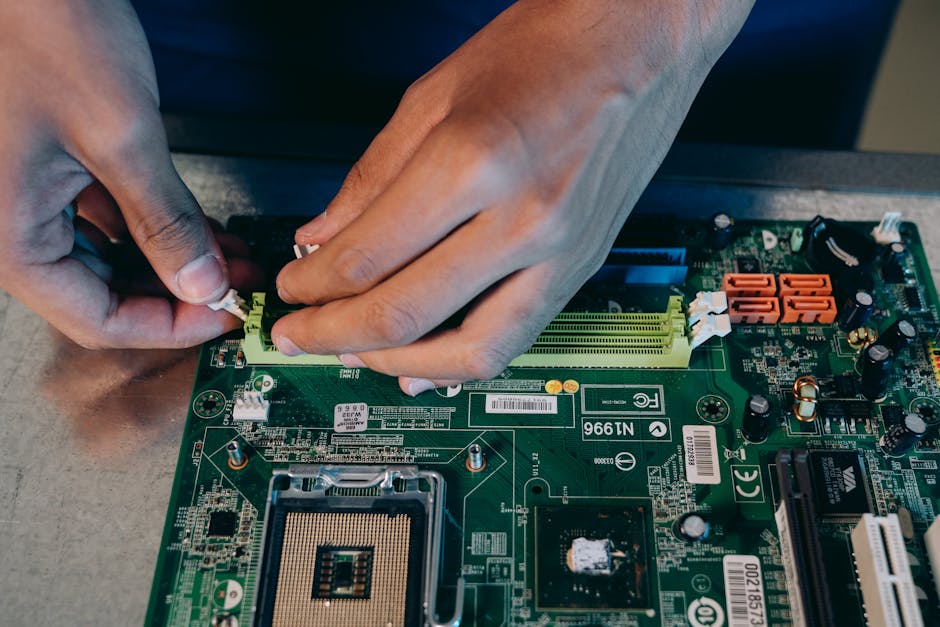
RAM sticks — the small rectangular memory boards inside your PC — can work themselves loose over time. With the PC unplugged, press the clips on either side of each RAM stick, pull it out, and push it firmly back in until both clips click. This fixes a surprising number of no-boot situations.
When to stop and get help
If you've worked through all of the above and the PC still won't start, the fault is most likely inside the machine: a dead power supply unit, a failed motherboard, or — less commonly — a failed CPU. These aren't DIY fixes for most people, and poking around further without the right tools risks making things worse.
The important thing to remember: a PC that won't turn on does not mean your data is gone. In most failure scenarios the hard drive or SSD is completely fine. A good repair technician will confirm this and recover your files before anything else.
If you're worried about your data or not sure where to start, have a read of our post on 5 warning signs your laptop needs a repair — many of the early symptoms apply to desktops too.
Local help on the Costa Blanca
At Campoverde Repair in Pinar de Campoverde, we diagnose "won't turn on" faults every week. We'll tell you honestly what's wrong and whether it's worth fixing — no jargon, no unnecessary upselling. Most desktop PSU replacements and RAM fixes are completed same-day or next-day. And we always check your data first.
FAQ
My PC turns on for a second then shuts off — what does that mean?
This usually means the machine is hitting a protection shutdown. The most common causes are a failing power supply unit that can't hold a stable voltage, a RAM fault, or an overheating issue. Try disconnecting all USB devices and non-essential drives first. If it still happens, the PSU is the prime suspect.
Can a power cut or surge stop a PC from turning on?
Yes. A sudden power cut or surge can trip the PSU's internal overload protector, or in worse cases damage the PSU or motherboard outright. Try the rocker switch reset on the back of the PSU. If there's any burning smell or visible scorch marks, don't attempt to power it on — bring it in.
Will I lose my files if my PC won't start?
Almost certainly not from this alone. The vast majority of no-power faults are in the PSU, motherboard, or RAM — none of which store your data. Your hard drive or SSD is very likely completely intact. A technician can confirm this and retrieve your files before any repair work begins.
Is it worth repairing an old PC that won't turn on?
It depends on the fault and the age of the machine. A PSU swap on a five-year-old desktop is usually very cost-effective. A failed motherboard on a ten-year-old machine may not be. A good technician will give you an honest assessment — repair cost vs. what a replacement would cost — before you commit to anything.
Ese momento horrible en que no pasa nada
Pulsas el botón de encendido y… silencio absoluto. Sin ventilador, sin pitido, sin ninguna luz. O quizás el equipo arranca un instante y se apaga de golpe. En cualquier caso, es una sensación muy desagradable — sobre todo si en ese ordenador tienes tu trabajo, tus fotos o tus datos bancarios.
La buena noticia: un PC que no enciende no significa automáticamente que hayas perdido tus datos ni que tengas que gastarte un dineral. Muchas causas son sencillas, y puedes descartar bastantes ahora mismo, en casa, sin destornillar nada.
Empieza por aquí: lo básico que no debes saltarte
Antes de entrar en pánico, comprueba esto — incluso los técnicos con experiencia empiezan siempre por aquí:
El enchufe de la pared. Conecta otra cosa (un cargador de móvil, una lámpara) y confirma que hay corriente. En la Costa Blanca los microcortes y subidas de tensión son frecuentes y pueden disparar el diferencial.
La regleta o el SAI. Si el PC está enchufado a una regleta, pulsa su botón de reset o prueba a enchufarlo directamente a la pared. Las regletas envejecen y fallan sin avisar.
El monitor, no el PC. A veces el PC sí está encendido — los ventiladores giran, los pilotos lucen — pero la pantalla permanece negra. Prueba con otro cable o con otro monitor antes de sacar conclusiones.
El cable de alimentación en la parte trasera del PC. Empújalo con firmeza. Las vibraciones con el tiempo pueden aflojarlo.
Lo que el PC te está intentando decir
Presta mucha atención a qué ocurre exactamente cuando pulsas el botón. Cada síntoma apunta en una dirección distinta:
Lo que ves o escuchas
Causa más probable
Completamente muerto — sin luces ni sonido
Sin corriente, fuente de alimentación averiada o botón de encendido roto
Los ventiladores giran y se paran al cabo de 1-2 segundos
Protección térmica, fallo de la RAM o fuente de alimentación débil
Ventiladores y luces en marcha, pero pantalla negra
Tarjeta gráfica, cable de monitor o fallo en el POST
Pitidos al arrancar
Error de RAM o tarjeta gráfica (el número de pitidos es un código)
Arranca bien pero se apaga a los pocos minutos
Sobrecalentamiento — ventiladores llenos de polvo o pasta térmica seca
Comprobaciones seguras que puedes hacer tú mismo
1. Reinicia la fuente de alimentación
En la parte trasera de la mayoría de los PCs de sobremesa hay un interruptor de palanca junto al conector de corriente. Ponlo en apagado, espera diez segundos y vuelve a encenderlo. Las fuentes de alimentación (PSU, en inglés) llevan un protector contra sobrecargas que puede dispararse en silencio. Así lo reseteas.
2. Desconecta todo lo que no sea imprescindible
Desenchufa los dispositivos USB, discos externos, impresoras — todo salvo el teclado y el monitor. Un dispositivo USB defectuoso puede llegar a impedir que el PC arranque. Prueba a encenderlo con lo mínimo indispensable conectado.
3. Comprueba el sobrecalentamiento
Si el PC funcionaba bien y empezó a apagarse solo, toca las rejillas de ventilación. ¿Expulsan aire caliente nada más encenderlo? Una máquina llena de polvo por dentro se apaga sola para protegerse. Si te sientes cómodo quitando el panel lateral, busca ventiladores claramente obstruidos. Un bote de aire comprimido — los venden en la mayoría de las papelerías y tiendas de móviles de la zona — puede marcar una diferencia enorme.
4. Recoloca la RAM (si te ves con ánimo)
Los módulos de RAM — las pequeñas placas rectangulares de memoria dentro del PC — pueden aflojarse con el tiempo. Con el PC desenchufado, presiona las pestañas de cada módulo, sácalo y vuelve a insertarlo con firmeza hasta que las pestañas hagan clic. Esto soluciona un número sorprendente de fallos de arranque.
Cuándo parar y pedir ayuda
Si has seguido todos estos pasos y el PC sigue sin encender, lo más probable es que el fallo sea interno: una fuente de alimentación muerta, una placa base estropeada o, con menos frecuencia, un procesador fallido. Estas averías no son aptas para el bricolaje doméstico, y hurgar más sin las herramientas adecuadas puede empeorar las cosas.
Lo más importante que debes recordar: que el PC no encienda no significa que hayas perdido tus datos. En la mayoría de estos casos el disco duro o el SSD está perfectamente intacto. Un buen técnico lo confirmará y recuperará tus archivos antes de hacer cualquier otra cosa.
Si quieres entender mejor cuándo un equipo empieza a dar señales de alarma, echa un vistazo a nuestro artículo sobre 5 señales de advertencia de que tu portátil necesita reparación — muchos de esos síntomas se aplican igualmente a los equipos de sobremesa.
Ayuda local en la Costa Blanca
En Campoverde Repair, en Pinar de Campoverde, diagnosticamos averías de "no enciende" cada semana. Te diremos con honestidad qué falla y si merece la pena repararlo — sin tecnicismos, sin venderte nada innecesario. La mayoría de sustituciones de fuentes de alimentación y reparaciones de RAM en sobremesas se resuelven el mismo día o al día siguiente. Y siempre revisamos tus datos primero.
Preguntas frecuentes
El PC se enciende un segundo y se apaga solo, ¿qué significa?
Normalmente significa que el equipo está activando un apagado de protección. Las causas más habituales son una fuente de alimentación que no mantiene el voltaje estable, un fallo en la RAM o un problema de sobrecalentamiento. Primero prueba a desconectar todos los dispositivos USB y discos no imprescindibles. Si sigue ocurriendo, la fuente de alimentación es la principal sospechosa.
¿Un corte de luz o una subida de tensión puede impedir que el PC encienda?
Sí. Un corte repentino o una sobretensión puede disparar el protector interno de la fuente de alimentación o, en casos más graves, dañar la fuente o la placa base. Prueba el reset con el interruptor trasero de la PSU. Si hay olor a quemado o marcas de carbonización, no intentes encenderlo — llévalo a un técnico.
¿Perderé mis archivos si el PC no arranca?
Casi con total seguridad, no. La gran mayoría de los fallos de encendido están en la fuente de alimentación, la placa base o la RAM — ninguno de los cuales almacena tus datos. Tu disco duro o SSD probablemente está en perfecto estado. Un técnico puede confirmarlo y recuperar tus archivos antes de iniciar cualquier reparación.
¿Vale la pena reparar un PC antiguo que no enciende?
Depende del fallo y de la antigüedad del equipo. Cambiar una fuente de alimentación en un sobremesa de cinco años suele ser muy rentable. Una placa base averiada en un equipo de diez años puede no serlo. Un buen técnico te dará una valoración honesta — coste de la reparación frente al coste de un equipo nuevo — antes de que decidas nada.
Computer trouble on the Costa Blanca?
30+ years of repair experience — on-site within 30 km and remote worldwide. Tell me what's wrong and I'll sort it.