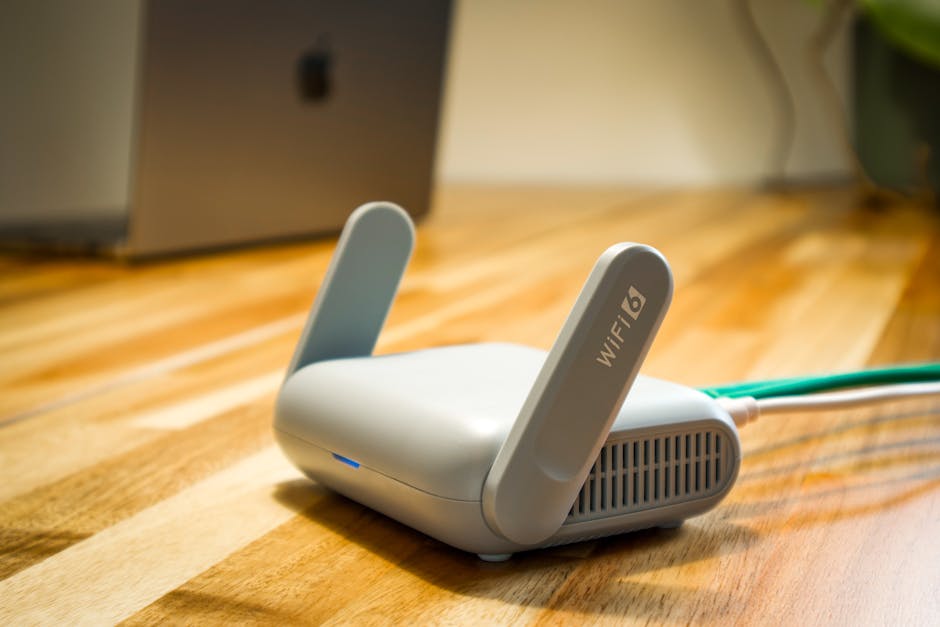
You're sitting at home on the Costa Blanca, the sun is blazing outside, and your video call keeps freezing. Your first instinct is to ring Movistar or Vodafone and complain — but before you do, there's a very good chance the problem is sitting right there on your shelf, covered in dust, with a little row of blinking lights. Your router.
Routers are one of those things people buy once and forget about. But they wear out, they overheat, they run outdated software, and they struggle under the weight of a house full of devices. Here's how to find out whether yours is the reason your internet crawls.
Step 1: Test your speed at the router first
Don't test Wi-Fi speed on your laptop from the sofa — that result includes every wall, appliance, and neighbour's microwave between you and the router. Instead, plug a laptop or desktop directly into the router with an ethernet cable and then run a speed test at fast.com or speedtest.net.
Compare the result to the speed you're paying for (it'll be on your bill or contract — in Spain typically 300 Mb/s, 600 Mb/s, or 1 Gb/s). If wired speed is fine but Wi-Fi is rubbish, the router's wireless side is the problem. If wired speed is also poor, the issue is either your router or your provider's line — keep reading.
Step 2: Restart the router properly
Not a quick power cycle — a proper restart. Switch the router off at the wall, wait a full 60 seconds, then switch it back on. Wait two minutes for it to reconnect fully. You'd be amazed how often this clears the problem entirely. Routers accumulate small errors in memory over days or weeks; a real restart clears the slate.
If you haven't restarted yours in months, do this first before anything else.
Step 3: Check for overheating
Feel the top of your router. Is it uncomfortably hot? Routers need airflow. If yours is stuffed inside a cabinet, sitting flat on a modem, or surrounded by cables and clutter, it may be throttling its own performance to avoid burning out. Stand it upright, move it somewhere with open air around it, and keep it out of direct sunlight — especially important here on the Costa Blanca where indoor temperatures can soar in summer.
Step 4: Count your connected devices
Every phone, tablet, laptop, smart TV, doorbell camera, and smart speaker is using a slice of your router's processing power — even on standby. Log into your router's admin panel (the address is usually printed on the back of the router — often 192.168.1.1 or 192.168.0.1) and look at the connected devices list. A busy household can easily have 20+ devices. If your router is more than five years old, it simply wasn't designed for that load.
Step 5: Check the router's age and firmware
If your router came free with your broadband contract five or more years ago, it's probably due for retirement. Wi-Fi standards have moved on — routers that only support Wi-Fi 5 (802.11ac) or older will bottleneck a fast fibre line. Current routers support Wi-Fi 6 (802.11ax), which handles many devices simultaneously far better.
Also check whether your router has a firmware update available. Log into the admin panel and look for a "Firmware" or "Software Update" section. Manufacturers push updates that fix bugs and improve performance — most people never apply them.
When is it your provider, not your router?
If wired speed is consistently poor at all hours, especially if neighbours on the same street report the same thing, the fault likely lies with your provider's infrastructure. Ask your neighbours, run speed tests at different times of day (congestion is worst in evenings), and report the fault formally in writing to your provider. In Spain, OFCOM's equivalent is the CNMC, and providers are legally obliged to deliver contracted speeds.
When to bring it in
If you've worked through these steps and still can't pin down the problem, or if your router is dropping connections randomly, running very hot, or showing error lights you can't explain, it's worth having a technician take a look. At some points a device is simply telling you it's had enough — and a router is no different. We can test your line, your router, and your home network setup properly, and recommend the right replacement if one is needed — without pushing you towards anything unnecessary.
Quick checklist
Run a wired speed test — compare to your contracted speed
Restart the router: off for 60 seconds, then back on
Check for overheating — give it space and airflow
Count connected devices — are you overloading an old router?
Check the router's age — older than 5 years? Time to consider an upgrade
Update the firmware via the admin panel
If wired speed is also slow — report the fault to your provider
Most slow Wi-Fi problems on the Costa Blanca come down to an overworked, overheated, or simply outdated router. The good news: once you know what's causing it, the fix is usually straightforward. And if it isn't, the same methodical approach works for diagnosing slow devices too.
FAQ
How do I know if my router is causing slow internet or if it's my provider?
Plug a laptop directly into the router with an ethernet cable and run a speed test. If wired speed matches what you're paying for, the router's Wi-Fi side is the issue. If wired speed is also low, the problem is your provider's line.
How often should I restart my router?
Once a week is a sensible habit for most households. Some routers let you schedule an automatic restart — check your admin panel. At minimum, restart it whenever speeds drop noticeably.
How old is too old for a Wi-Fi router?
Five years is a reasonable rule of thumb. Technology and household device counts have changed enormously in that time. A router from 2018 or earlier was designed for far fewer connected devices and slower speeds than most homes now need.
Can a router be repaired, or does it need replacing?
Most routers can't be economically repaired — the components are sealed and inexpensive to replace. A decent Wi-Fi 6 router costs €50–€120 and will likely transform your experience. A technician can confirm whether replacement is really needed before you spend anything.
Internet lento: no culpes a tu operadora todavía
Estás en casa en la Costa Blanca, intentando hacer una videollamada, y la imagen se congela cada dos por tres. Lo primero que piensas es llamar a Movistar o Vodafone para quejarte. Pero antes de marcar, hay muchas posibilidades de que el problema esté justo ahí, en tu estantería, lleno de polvo y con sus lucecitas parpadeando. Tu router.
El router es uno de esos aparatos que se compra una vez y se olvida. Pero se desgasta, se recalienta, funciona con software obsoleto y se queda corto cuando hay demasiados dispositivos conectados a la vez. Te explicamos cómo averiguar si el tuyo es el responsable de que internet vaya a paso de tortuga.
Paso 1: Mide la velocidad directamente en el router
No hagas la prueba de velocidad desde el sofá con el portátil — ese resultado incluye la distancia, las paredes y cualquier interferencia que haya por el medio. En su lugar, conecta un portátil o un ordenador de sobremesa directamente al router con un cable de red (ethernet) y haz la prueba en fast.com o speedtest.net.
Compara el resultado con la velocidad que tienes contratada (aparece en tu factura o contrato — en España suele ser 300 Mb/s, 600 Mb/s o 1 Gb/s). Si por cable va bien pero por Wi-Fi va mal, el problema es la parte inalámbrica del router. Si por cable también va lento, el fallo puede ser el router o la línea de tu operadora — sigue leyendo.
Paso 2: Reinicia el router como es debido
No vale simplemente apagarlo y encenderlo en dos segundos — hay que hacerlo bien. Apaga el router desde el enchufe, espera 60 segundos completos y vuelve a encenderlo. Espera dos minutos a que se reconecte del todo. Te sorprendería la cantidad de veces que esto resuelve el problema por completo. Con el tiempo los routers acumulan pequeños errores en la memoria; un reinicio de verdad los borra.
Si no lo has reiniciado en meses, empieza por aquí antes de hacer nada más.
Paso 3: Comprueba si se está recalentando
Toca la parte de arriba del router. ¿Está demasiado caliente? Los routers necesitan ventilación. Si el tuyo está metido dentro de un mueble, apilado encima del módem o rodeado de cables y trastos, puede que esté reduciendo su propio rendimiento para no quemarse. Ponlo en vertical, colócalo en un sitio con espacio a su alrededor y no lo dejes al sol directo — algo especialmente importante en la Costa Blanca, donde en verano las temperaturas de interior pueden dispararse.
Paso 4: Cuenta los dispositivos conectados
Cada móvil, tableta, portátil, televisión inteligente, cámara de timbre y altavoz conectado consume una parte de la capacidad del router — incluso en standby. Entra en el panel de administración del router (la dirección suele estar impresa en la parte trasera del aparato — normalmente 192.168.1.1 o 192.168.0.1) y mira la lista de dispositivos conectados. En una casa con familia puede haber fácilmente más de 20. Si tu router tiene más de cinco años, simplemente no fue diseñado para esa carga.
Paso 5: Revisa la antigüedad y el firmware del router
Si tu router llegó gratis con el contrato de fibra hace cinco años o más, probablemente ya haya cumplido su ciclo. Los estándares Wi-Fi han avanzado mucho: un router que solo soporta Wi-Fi 5 (802.11ac) o anterior puede convertirse en el cuello de botella de una línea de fibra rápida. Los routers actuales utilizan Wi-Fi 6 (802.11ax), que gestiona muchos dispositivos a la vez de forma mucho más eficiente.
Comprueba también si hay actualizaciones de firmware disponibles. Entra en el panel de administración y busca una sección llamada «Firmware» o «Actualización de software». Los fabricantes publican actualizaciones que corrigen errores y mejoran el rendimiento — y la mayoría de la gente nunca las instala.
¿Cuándo es culpa de tu operadora y no del router?
Si la velocidad por cable también es constantemente baja a cualquier hora del día, especialmente si los vecinos de la misma calle tienen el mismo problema, lo más probable es que el fallo esté en la infraestructura de tu operadora. Pregunta a tus vecinos, haz pruebas de velocidad a distintas horas (la saturación es mayor por las noches) y comunica la avería por escrito a tu operadora. En España, el organismo regulador equivalente a Ofcom es la CNMC, y las operadoras están legalmente obligadas a ofrecer las velocidades contratadas.
Cuándo conviene traerlo a revisar
Si has seguido todos estos pasos y el problema sigue sin tener explicación, o si tu router pierde la conexión de forma aleatoria, se calienta mucho o tiene luces de error que no sabes interpretar, merece la pena que un técnico lo revise. Hay momentos en que un dispositivo simplemente te está diciendo que ya no puede más — y un router no es diferente. Podemos comprobar tu línea, tu router y la configuración de la red en casa, y recomendarte el equipo adecuado si hace falta — sin presionarte para que compres nada que no necesitas.
Lista de comprobación rápida
Haz una prueba de velocidad por cable — compárala con lo que tienes contratado
Reinicia el router: apagado 60 segundos, luego a encender
Comprueba si se recalienta — dale espacio y ventilación
Cuenta los dispositivos conectados — ¿estás saturando un router antiguo?
Mira la antigüedad del router — ¿más de 5 años? Valora cambiarlo
Actualiza el firmware desde el panel de administración
Si por cable también va lento — comunica la avería a tu operadora
La mayoría de los problemas de Wi-Fi lento en la Costa Blanca se deben a un router sobrecargado, recalentado u obsoleto. La buena noticia: una vez identificada la causa, la solución suele ser sencilla. Y si no lo es, el mismo enfoque metódico funciona para diagnosticar dispositivos lentos.
Preguntas frecuentes
¿Cómo sé si el culpable del internet lento es mi router o mi operadora?
Conecta un portátil directamente al router con cable ethernet y haz una prueba de velocidad. Si el resultado por cable coincide con lo que tienes contratado, el problema es el Wi-Fi del router. Si por cable también va lento, el fallo es la línea de tu operadora.
¿Con qué frecuencia debo reiniciar el router?
Una vez a la semana es una buena costumbre para la mayoría de los hogares. Algunos routers permiten programar un reinicio automático — consúltalo en el panel de administración. Como mínimo, reinícialo siempre que notes que la velocidad cae de forma clara.
¿A partir de qué edad se considera que un router es demasiado viejo?
Cinco años es una buena referencia. La tecnología y el número de dispositivos en los hogares han cambiado enormemente en ese tiempo. Un router de 2018 o anterior fue diseñado para muchos menos dispositivos y velocidades mucho más bajas de las que se necesitan hoy en día.
¿Se puede reparar un router o hay que sustituirlo directamente?
La mayoría de los routers no son rentables de reparar — los componentes están integrados y el equipo nuevo es económico. Un buen router Wi-Fi 6 cuesta entre 50 € y 120 € y puede transformar por completo tu experiencia de red. Un técnico puede confirmar si realmente necesitas cambiarlo antes de que gastes nada.
Computer trouble on the Costa Blanca?
30+ years of repair experience — on-site within 30 km and remote worldwide. Tell me what's wrong and I'll sort it.