

A USB drive not recognised by Windows 10 or 11 is almost never a sign that the drive is dead. In the vast majority of cases, the fix takes under five minutes and requires zero technical experience. The problem usually sits with Windows itself — a stale driver, a power setting that's gone rogue, or a missing drive letter — not with the hardware in your hand.
That said, "almost never" isn't "never." This guide walks you through every real cause in order of likelihood, so you stop wasting time unplugging and replugging like it's going to magically work on the 14th try.
Why does Windows say "USB Device Not Recognised" in the first place?
Windows throws that error when it detects something on the USB bus but can't negotiate a stable connection with it. The culprit is usually a driver that has crashed or gone stale, a USB controller that needs a reset, or — less glamorously — a dirty connector. It does not automatically mean your data is gone or your drive is fried.
Is the problem the USB drive or the USB port?
Plug the drive into a different port — ideally one on the back of a desktop, which is wired directly to the motherboard. If it works there, the original port is the suspect. If it fails on every port of your machine but works on a friend's laptop, the issue is Windows or your USB controllers, not the drive itself. Isolating this in 60 seconds saves you hours of chasing the wrong fix.
Does unplugging and replugging actually do anything?
Occasionally, yes — but only if the initial connection triggered a driver crash. A better version of the same idea: open Device Manager (right-click the Start button → Device Manager), expand Universal Serial Bus controllers, right-click each USB Root Hub entry and select Disable device, wait five seconds, then re-enable. That's a proper USB controller reset, not just wishful thinking with a cable.
Could a Windows power-saving setting be blocking the drive?
Yes — and this one catches almost everyone. Windows has a setting called USB selective suspend that cuts power to USB devices to save battery. On laptops especially, it can starve a drive of the power it needs to mount. Go to Control Panel → Power Options → Change plan settings → Change advanced power settings → USB settings → USB selective suspend setting and set it to Disabled. Reconnect the drive. Nine times out of ten on laptops, this is the fix.
The drive shows up in Device Manager but not in File Explorer — what now?
This is the most common scenario and the most misdiagnosed. When a drive appears in Device Manager but is invisible in File Explorer, it has no drive letter assigned. Open Disk Management (right-click Start → Disk Management), find your drive in the list at the bottom — it may show as "Unallocated" or have no letter — right-click it and choose Change Drive Letter and Paths, then assign any free letter. Done. Your data is completely intact; Windows just forgot to give the drive an address.
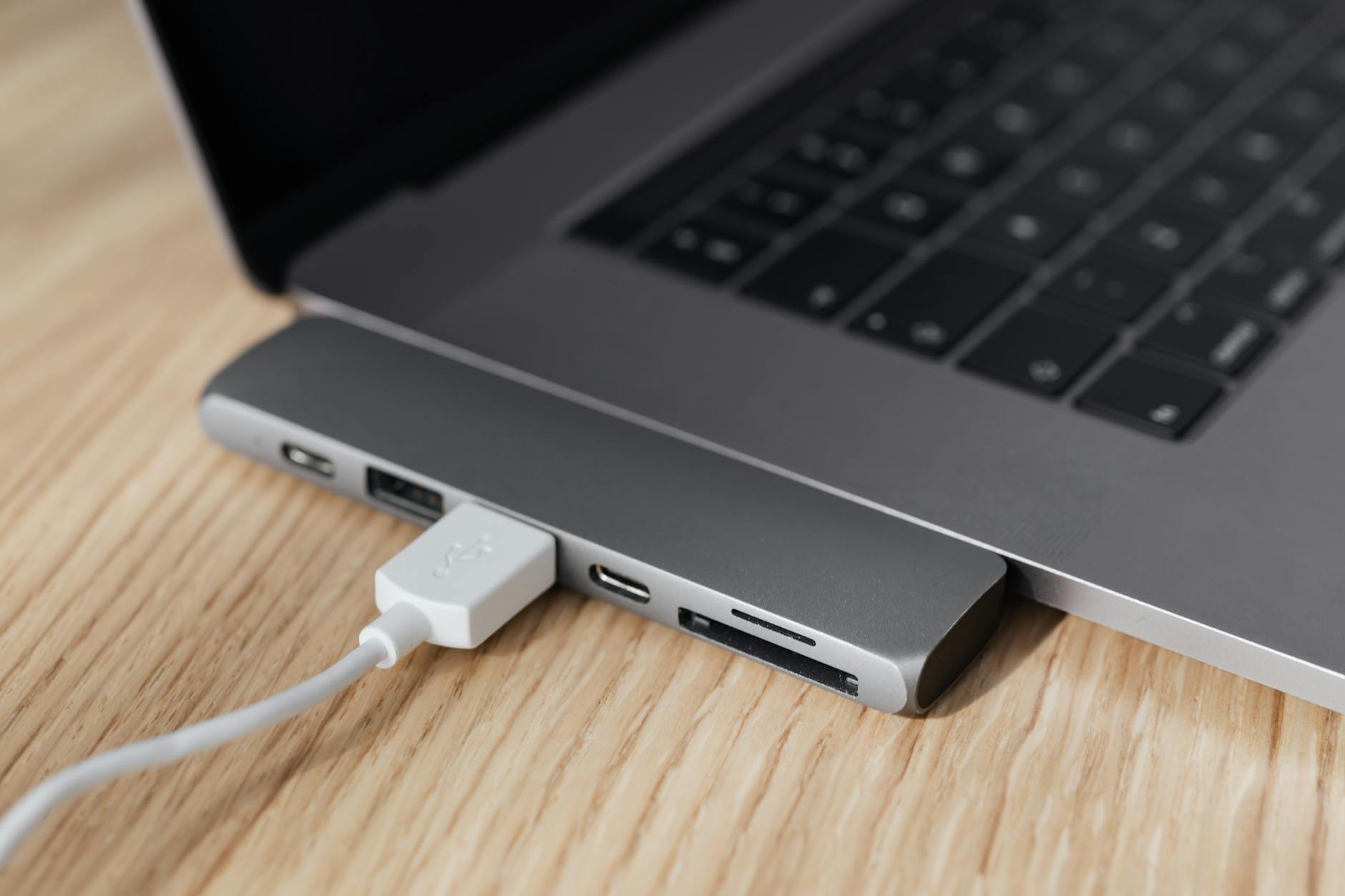
What if the drive shows as "Unknown Device" with a yellow warning triangle?
That yellow triangle means the driver has failed. Right-click the entry in Device Manager, choose Update driver → Search automatically. If Windows finds nothing, choose Uninstall device instead, then unplug the drive, reboot, and plug it back in — Windows will reinstall the driver from scratch on startup. If the triangle keeps coming back, download the latest Intel USB drivers or AMD chipset drivers directly from your motherboard manufacturer's website; the version bundled with Windows is often months out of date.
Can a corrupted file system make a drive invisible?
Absolutely. If the drive was yanked out mid-write — or Windows crashed while it was mounted — the file system can corrupt to the point where Windows refuses to show it. Open Command Prompt as Administrator and run: chkdsk X: /f /r (replace X with your drive letter if you can see it in Disk Management). If the drive shows as RAW in Disk Management rather than NTFS or FAT32, do not format it yet — there's a good chance a tool like Recuva or TestDisk can pull your files off first.
Does the type of USB port matter — USB 2.0 vs 3.0 vs USB-C?
More than most people expect. Some older USB 3.0 drives have a well-documented handshake problem with certain USB 3.1 controllers in Windows 11, where the port negotiates a speed the drive can't maintain and drops the connection entirely. Try plugging a USB 3.0 drive into a USB 2.0 port as a test — it'll run slower, but if it mounts cleanly, you've confirmed a controller compatibility issue rather than a dead drive. USB-C adapters add another layer of potential failure; always try a second adapter before blaming the drive.
Could it be a hardware fault on the drive itself?
If none of the above fixes work across multiple machines, yes — the drive has likely failed physically. The most common single-point failure on USB flash drives is the solder joint between the USB connector and the circuit board; a knock or a stressed cable is all it takes. Do not keep trying to write to a failing drive — every write attempt risks overwriting recoverable data. At that point, professional data recovery is the next step, not a trip to MediaMarkt for a new drive.
Is there a quick way to test if a drive is dying before it fails completely?
For flash drives, H2testw (free, Windows) writes a test pattern across the entire drive and reads it back, flagging bad sectors and speed anomalies. Run it the moment you notice a drive behaving strangely — slow transfers, random disconnects, files that vanish. For external hard drives, plug it in, open CrystalDiskInfo (also free), and check the SMART data; anything showing Caution or Bad means copy your data off immediately and bin the drive.
Still unsure which fix applies to your situation?
Start with the Disk Management question above — the "no drive letter" scenario is by far the most common cause we see walk through the door at Campoverde Repair, and it's the one most people completely skip because it doesn't look like an error. If your drive is invisible everywhere, including Disk Management, then the power settings question is your next stop.
Key Takeaways
- "USB Device Not Recognised" rarely means the drive is dead — it almost always means Windows has lost the plot, not the hardware.
- No drive letter in Disk Management is the single most common cause of a drive being invisible in File Explorer — assign one and you're done.
- USB selective suspend silently kills drives on laptops — disable it in Power Options before doing anything else on a portable machine.
- A yellow triangle in Device Manager means a driver failure — uninstall the device, reboot, and let Windows reinstall it fresh.
- If the drive fails on multiple machines, stop writing to it and get the data recovered before the situation goes from bad to catastrophic.
The question most people get wrong? They assume "not showing in File Explorer" means the drive is broken. It doesn't. Nine times out of ten it's a missing drive letter that takes 30 seconds to fix. Don't format the drive. Don't buy a new one. Check Disk Management first — every single time.
Still stuck after trying all of the above? Bring the drive into Campoverde Repair on the Costa Blanca. We'll tell you within minutes whether the data is recoverable and what it'll take to get it back — no guessing, no upselling, no drama.
Frequently asked questions
Why does Windows 10 say USB device not recognised?
Windows throws this error when it detects a USB device but can't establish a stable connection with it. The most common causes are a crashed USB driver, a missing drive letter, or the USB selective suspend power setting cutting power to the device. It rarely means the drive itself is physically broken.
How do I fix a USB drive that shows in Device Manager but not File Explorer?
Open Disk Management (right-click Start → Disk Management), find your drive in the lower panel, right-click it, and choose 'Change Drive Letter and Paths' to assign a letter. Windows sometimes forgets to give a drive an address, making it invisible in File Explorer even though it's fully functional. Your data is untouched — this fix takes under a minute.
Can Windows 11 cause USB drives to stop working?
Yes. Windows 11 introduced updated USB controller drivers and power management behaviour that can conflict with older USB 3.0 drives. Disabling USB selective suspend in Power Options and updating your chipset drivers from the motherboard manufacturer's website resolves the issue in most cases.
How do I know if my USB drive is dead or just not recognised?
Test the drive on at least two different computers and two different ports. If it fails to appear anywhere — including in Disk Management — on multiple machines, the drive has likely failed physically. If it shows up on another PC, the problem is with Windows or the original machine's USB controllers, not the drive.
Is it safe to format a USB drive that Windows says is RAW?
No — do not format it yet. A RAW file system usually means the file system is corrupted, not that the data is gone. Use a free tool like Recuva or TestDisk to attempt data recovery first. Formatting will overwrite the file allocation table and make professional recovery significantly harder and more expensive.