

How to Transfer All Your Data to a New Laptop Without Losing Anything
The Question Sitting Between You and Your New Laptop
Migrating everything from your old laptop to a new one is the single most stressful part of upgrading — and the one most people get catastrophically wrong. Data migration means copying your files, settings, browser data, passwords, apps, and operating system preferences from one machine to another without leaving anything behind. Do it right and your new laptop feels like home from day one. Do it wrong and you're hunting for a file you swear you had three months from now.
There are two main ways people do this: Manual Transfer (copying files yourself using an external drive, USB, or cloud storage) versus Migration Software (dedicated tools like Windows Easy Transfer, Laplink PCmover, or macOS Migration Assistant that do the heavy lifting automatically). Both work. Neither is perfect. Which one is right for you depends on exactly how messy your old laptop is — and how much of your life is actually on it.
What We're Comparing
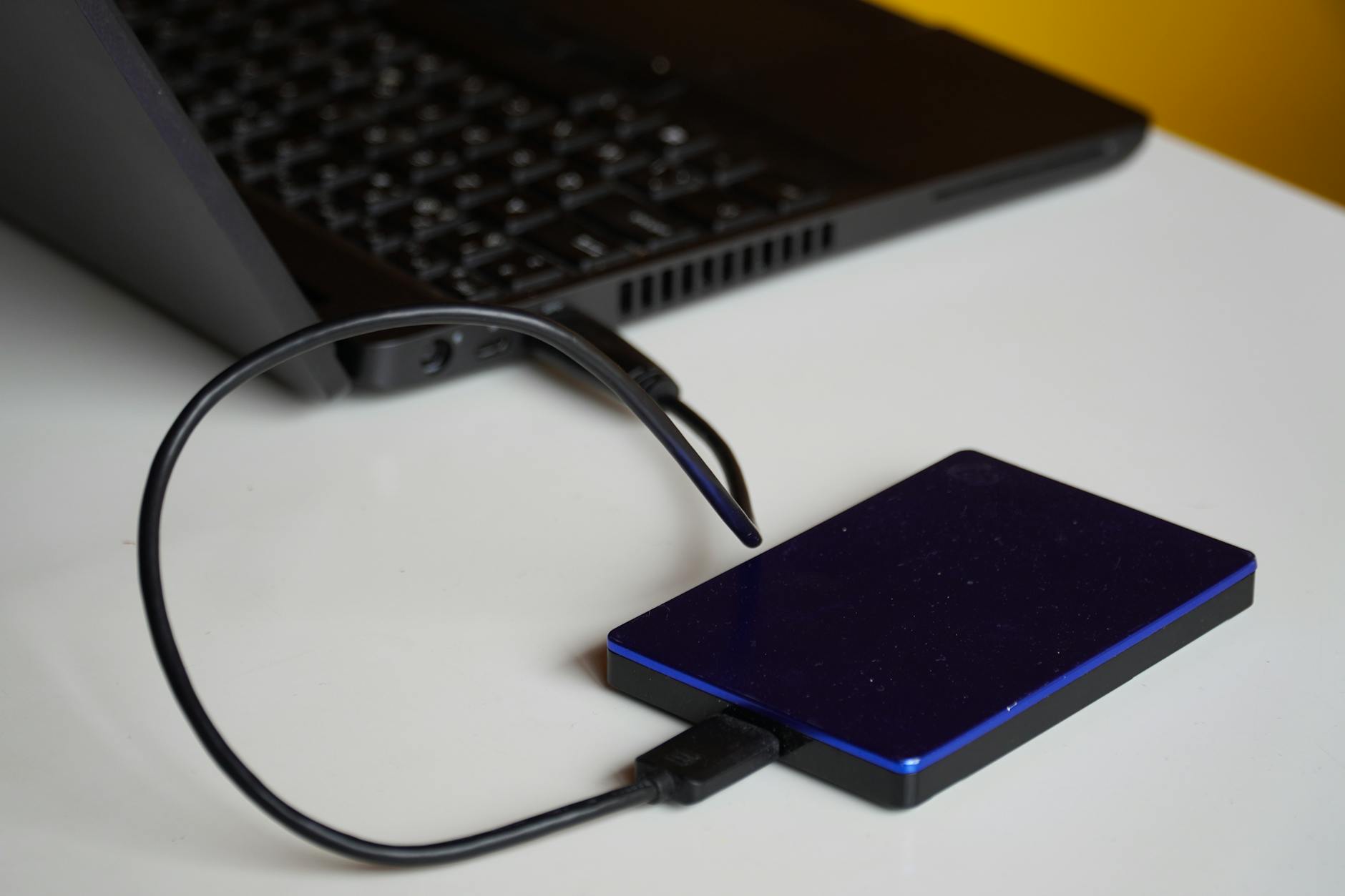
- Manual Transfer: You copy files folder by folder using an external hard drive, USB stick, or cloud service like OneDrive or Google Drive.
- Migration Software: A dedicated app scans your old machine and moves everything — files, apps, settings, user profiles — to the new one automatically.
The Criteria We'll Judge Them On
- Cost
- Ease of Use
- What Actually Gets Transferred
- Risk of Data Loss
- Speed
- Support When It Goes Wrong

Cost
Manual Transfer wins on price — it can cost you nothing. If you already own an external hard drive or have cloud storage, you're spending zero euros. Google Drive gives you 15GB free. OneDrive gives Microsoft 365 users 1TB. A decent 1TB external USB drive from MediaMarkt runs about €55 if you don't own one yet.
Migration software is a different story. Laplink PCmover Professional — the most capable Windows tool — costs around €45–€60 for a single transfer. macOS Migration Assistant is free, which gives Mac users an unfair advantage here. For Windows users paying for a one-time tool, it stings a little, especially when the marketing makes it sound like magic and the reality is… mostly magic, with occasional hiccups.
Winner: Manual Transfer (unless you're on a Mac, in which case Migration Assistant is free and this criterion is a draw).
Ease of Use
Manual transfer sounds simple. It isn't. You have to know where your files actually live — and most people don't. Documents in Downloads, photos scattered across five folders, browser bookmarks in a format you've never exported before, Outlook PST files hiding in AppData, game saves buried three levels deep. Most people who "just copy their Documents folder" lose somewhere between 15% and 40% of their actual data without realising it until months later.
Migration software handles the complexity. You plug in a cable (or connect both machines to the same Wi-Fi), click a few buttons, and go make a coffee. macOS Migration Assistant is genuinely one of the smoothest pieces of software Apple has ever made. It transfers user accounts, apps, system settings, and files with near-zero user input. Laplink PCmover on Windows is solid but clunkier — expect to spend 20–30 minutes configuring what to transfer and what to leave behind.
Winner: Migration Software — by a wide margin for anyone who isn't a professional IT person.
What Actually Gets Transferred
This is where the gap becomes brutal. Manual transfer moves files. Migration software moves your digital life. Here's the difference:
- Manual: Your Documents folder, your photos, your music, your downloads — whatever you remember to copy.
- Manual misses: Installed applications (you'll reinstall everything from scratch), email account settings, browser passwords if not synced, desktop wallpaper and colour themes, Wi-Fi passwords, printer configurations, software licence keys, game progress, and anything in AppData.
- Migration software transfers: User profiles, installed applications (Windows), app preferences, browser data, email settings, Wi-Fi passwords, system preferences, and in many cases, software licence activations.
One important caveat: migration tools cannot always transfer apps that are tied to hardware-specific licences or DRM — things like Adobe Creative Cloud or Microsoft Office still need reactivating. But at least the software is there waiting, rather than completely absent.
Winner: Migration Software — it's not even close.
Risk of Data Loss
Manual transfer puts all the risk on you. Forget to copy a folder? Gone. Accidentally overwrite something? Gone. Misremember where Outlook stores your emails? Three years of correspondence: gone. The most common data loss scenario we deal with at Campoverde Repair is someone who "transferred everything" manually and then wiped their old laptop before checking whether the transfer was actually complete.
Migration software reduces human error dramatically — but it introduces its own risks. A failed transfer mid-process can leave your new machine in a messy half-migrated state. Network interruptions during Wi-Fi migration can corrupt files. And if your old machine has a failing hard drive, migration software will copy the corruption right along with your data.
The single best risk-reduction move, regardless of which method you choose: create a full backup of your old laptop before you start anything. Use Windows Backup, Time Machine (Mac), or image your drive with Macrium Reflect (free). That backup is your safety net.
Winner: Migration Software — but only if your old laptop's drive is healthy. If it's failing, come see us first.
Speed
Counterintuitively, manual transfer of just your files is often faster than migration software — if you know what you're doing. Copying 50GB of documents and photos over USB 3.0 takes under 15 minutes. Migration software doing a full system scan and transfer of 200GB+ can take two to five hours, sometimes overnight on older hardware.
That said, "fast" is relative. A 20-minute manual transfer that misses your Outlook archive and two years of project files isn't actually faster — it just feels that way until the panic sets in six weeks later.
Winner: Manual Transfer (for raw clock speed on smaller datasets). Migration Software wins on total time when you factor in the hours of reinstalling apps manually.
Support When It Goes Wrong
Manual transfer goes wrong silently. You won't know something is missing until you need it. There's no error log, no support line, no undo button once the old machine is gone.
Migration software at least tells you when something failed. Laplink offers phone and chat support. macOS Migration Assistant has Apple's ecosystem behind it. Neither, however, is going to help you recover data from a drive that's already been reformatted. That's a data recovery job — which costs between €150 and €500 depending on the damage.
If something goes sideways during any migration — software crash, incomplete transfer, corrupt files — Campoverde Repair on the Costa Blanca handles exactly this kind of recovery. We've seen every flavour of migration disaster. We fix them.
Winner: Migration Software — at least it fails loudly.
Who Should Choose Which
Choose Manual Transfer if:
- You only need to move documents, photos, and music — nothing else matters to you.
- You're a tech-comfortable user who knows exactly where every file lives on your system.
- You're switching operating systems (Windows to Mac or vice versa) — software migration tools can't bridge that gap for applications.
- You want zero software cost and have time to reinstall your apps fresh.
- You're using a cloud service like OneDrive or Google Drive that's already synced everything automatically.
Choose Migration Software if:
- You have years of accumulated settings, apps, and configurations you don't want to rebuild from scratch.
- You're staying on the same platform (Windows to Windows, or Mac to Mac).
- You use Outlook, multiple browser profiles, or specialty software with complex settings.
- You're not confident you know where everything is stored on your old machine.
- Your time is worth more than €50 — because reinstalling and reconfiguring everything manually can easily eat a full day.
Verdict: Pick One, Stick With It, Back Up First
Pick Manual Transfer if you're only moving files and you already have cloud sync running. It's free, fast, and perfectly adequate for a light digital footprint. Just be brutally honest with yourself about whether "my Documents folder" actually contains everything important — it almost never does.
Pick Migration Software if your old laptop is your work machine, your creative studio, or your personal command centre. The €45–€60 cost of PCmover is worth less than one hour of your time trying to track down where Photoshop stored your workspaces or why your VPN client won't connect on the new machine.
And whatever you choose — back up your old laptop before you touch anything. A full image backup takes an hour and costs nothing except a spare drive. Recovering data from a wiped machine costs hundreds of euros and takes days. We've had this conversation with clients after the fact more times than we'd like to count. Don't be that person.
If your transfer goes sideways, your old machine has a failing drive, or you just want someone to handle it properly the first time — Campoverde Repair is right here on the Costa Blanca. We do this every week. Bring both laptops and a coffee, and we'll sort it.
Key Takeaways
- Manual transfer is free and fast but only moves files — you will miss installed apps, settings, passwords, and hidden data if you don't know exactly where to look.
- Migration software (PCmover for Windows, Migration Assistant for Mac) transfers your entire digital environment — apps, settings, user profiles, and preferences — not just your folders.
- Always create a full backup of your old laptop before starting any transfer — a forgotten step that turns a €0 mistake into a €300 data recovery bill.
- If you're switching platforms (Windows to Mac or Mac to Windows), no migration tool will move your apps — plan to reinstall everything fresh.
- If your old laptop's hard drive is making noises, running slow, or showing errors — get the drive checked before migrating, or you'll copy the problem straight onto your new machine.
Frequently asked questions
What is the easiest way to transfer everything from an old laptop to a new one?
For Mac users, Migration Assistant is the easiest option — it's free, built in, and transfers apps, files, and settings automatically over Wi-Fi or a cable. For Windows users, Laplink PCmover is the most complete paid option, while Windows Backup handles files and settings for free. Whichever method you use, always back up your old laptop first.
Will migration software transfer my installed programs to the new laptop?
Yes — tools like Laplink PCmover and macOS Migration Assistant can transfer most installed applications along with their settings. However, apps tied to hardware licences or DRM (like Adobe Creative Cloud or Microsoft Office) will need to be reactivated, and some may need reinstalling. Check your licence terms before migrating.
Can I transfer data from an old Windows laptop to a new Mac (or vice versa)?
You can transfer your files — documents, photos, music — between platforms using an external drive or cloud storage. However, no migration tool can move Windows applications to a Mac or macOS apps to Windows. You'll need to install the Mac or Windows versions of your software fresh on the new machine.
How long does it take to transfer data to a new laptop?
A manual file copy of 50–100GB over USB 3.0 typically takes 10–30 minutes. A full migration using software like PCmover or Migration Assistant can take 2–5 hours for a typical laptop with 200GB+ of data, and may run overnight on older hardware. The time investment is usually worth it compared to reinstalling everything manually.
What happens if my data transfer to a new laptop fails or is incomplete?
If you still have access to the old laptop, you can restart the transfer process. If the old laptop has been wiped or the drive has failed, professional data recovery is required — this typically costs €150–€500 depending on the damage. This is why creating a full backup image of your old laptop before starting any transfer is essential.
Computer trouble on the Costa Blanca?
30+ years of repair experience — on-site within 30 km and remote worldwide. Tell me what's wrong and I'll sort it.
Get help now →Photos via Pexels