
A failing laptop hard drive is one of the leading causes of sudden, catastrophic data loss — and in most cases, it gives you clear warning signs days or even weeks before it dies completely. Knowing those signs, and acting fast, is the difference between a €60 repair and losing every photo, document, and password you've ever saved. Here are 7 hard drive warning signs ranked from "pay attention" to "back up right now and call us," plus what you should do at each stage.
Who This Is For — And Why It Matters
This list is for anyone on the Costa Blanca using a Windows or Mac laptop that's started acting strangely — slow boots, weird noises, random crashes, or files that vanish into thin air. It's also for the expats who've been told by their "friend who's good with computers" that everything is fine when clearly it isn't. Hard drives don't last forever. Most traditional spinning drives (HDDs) have a lifespan of 3 to 5 years. If your laptop is older than that and you haven't replaced the drive, you're already on borrowed time.
7 Signs Your Laptop Hard Drive Is Failing
1. Clicking or Grinding Noises — Get Your Data Off Today
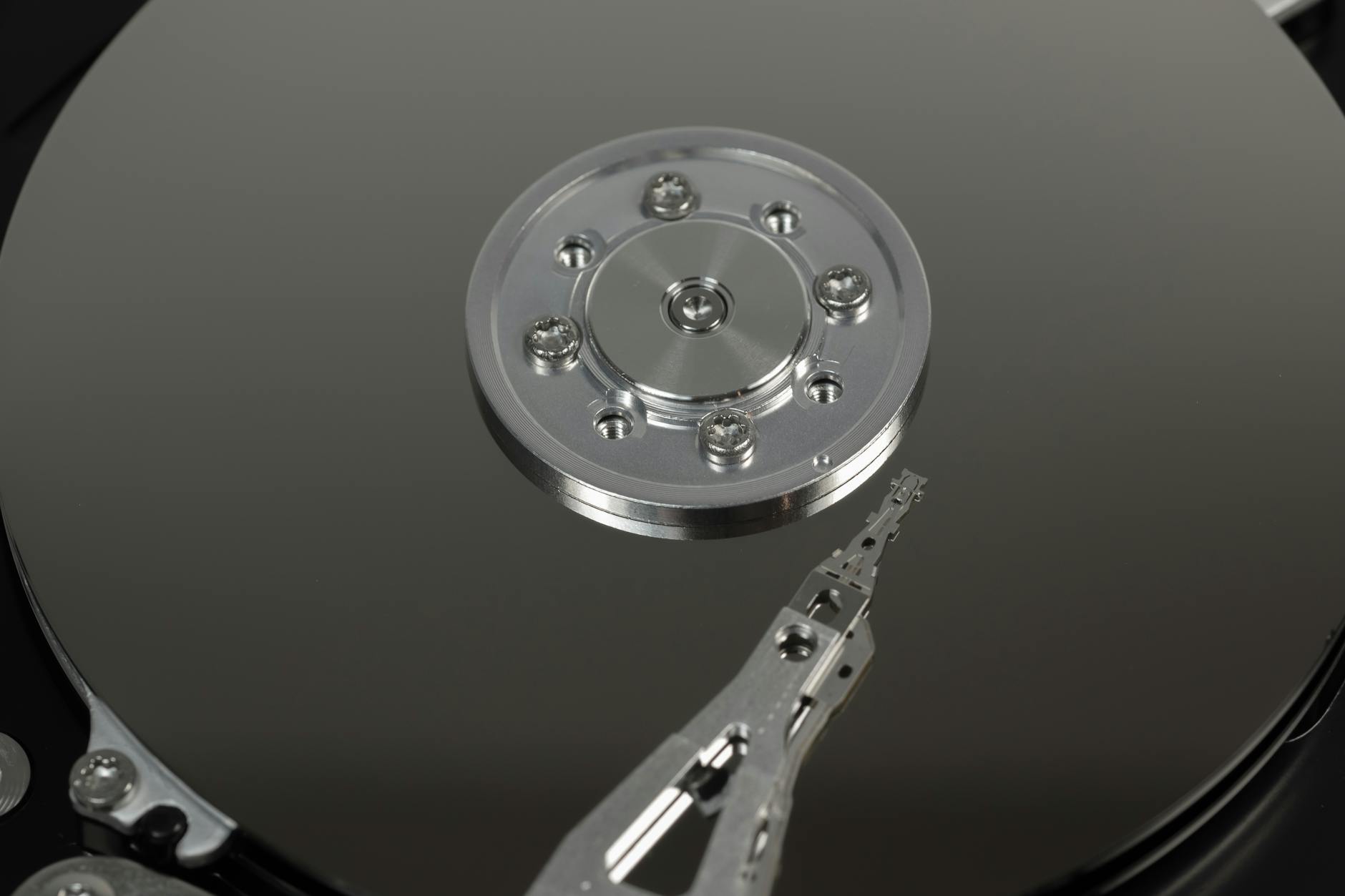
This is the "drop everything" warning. A clicking or grinding sound from your laptop is almost always the hard drive's read/write heads scraping against the platters — a condition called a head crash. Once you hear this, the drive can fail completely within hours. Don't restart it, don't run diagnostics, don't install anything. Plug in an external drive and copy your most important files right now, then call a professional.
2. Extremely Slow Boot Times — Your Drive Is Struggling to Read Data
If Windows or macOS used to load in under 30 seconds and now takes 5 minutes — without any new software installed — your drive is likely developing bad sectors. Bad sectors are areas of the disk the drive can't read reliably, so it retries over and over, causing painful slowdowns. A free tool like CrystalDiskInfo (Windows) can tell you in plain language whether your drive's health is "Good," "Caution," or "Bad." Anything below Good means act now.
3. Frequent Freezing or the Blue Screen of Death — Don't Blame Windows
Random freezes and blue screens are the most misdiagnosed symptoms in PC repair. Most people blame Windows, viruses, or "just the way it is." In our experience, a large percentage of these cases trace back to a failing hard drive — specifically, the operating system trying to read a corrupted sector and choking on it. If your laptop freezes more than twice a week without a clear reason, run a SMART diagnostic immediately.
4. Files Becoming Corrupted or Disappearing — The Drive Is Already Losing Data
Opening a Word document and getting garbage characters. A photo that was fine yesterday now won't open. A folder that's somehow empty. These are not software glitches — these are signs that your hard drive is actively corrupting data right now. This stage is serious. Every hour you wait, more files are at risk. Prioritise backing up irreplaceable items: family photos, business documents, tax records — before anything else.
5. Unusually Long File Copy or Save Times — The Drive Is Working Too Hard
Copying a 500MB file used to take seconds. Now it takes minutes, or stalls at 99% for an eternity. This is your drive struggling to write data to sectors it's no longer confident about. It's not dramatic, but it's a reliable early indicator. At this stage you still have time — use it. Schedule a full backup and book a drive health check before things escalate.
6. The Laptop Doesn't Recognise the Drive at Startup — You May Already Be Too Late
You press the power button and instead of loading Windows, you get a black screen with a message like "No boot device found" or "Operating system not found." The BIOS can't detect the hard drive at all. This is a critical failure state. Data recovery is still possible at this stage, but it requires specialist tools and is significantly more expensive than a simple drive replacement would have been a month earlier. Don't try random YouTube fixes — power off and get it to a technician fast.
7. The Laptop Runs Fine From a USB Drive But Crawls on Its Own — Proof It's the Drive
Here's a diagnostic trick most people don't know: boot your laptop from a Linux USB stick (like Ubuntu). If the machine runs perfectly — fast, stable, no freezing — but goes back to being a nightmare when it boots from its own hard drive, the hardware is fine and the drive is the culprit. This test costs nothing and gives you near-certain confirmation before spending money on anything. We use a version of this test in our own workshop every single day.
How to Pick Your Next Move
Here's the honest decision tree we use when a client brings us a struggling laptop:
- Hearing noises or seeing the "no boot device" error? Stop using the laptop. Bring it in. Every power cycle risks further damage.
- Slow boots, long file copies, or files corrupting? Run CrystalDiskInfo or the Mac equivalent (Disk Utility's First Aid). If the result is anything but "Good," back up immediately and replace the drive within days — not weeks.
- Random freezes and blue screens? Run a SMART test first. If the drive tests clean, then we look at RAM and software. But rule the drive out first — it's the most common culprit.
- Drive is fine but the laptop is still slow? An SSD upgrade will make a 5-year-old laptop feel brand new. We do these regularly here in Campoverde and the results are night and day — boot times drop from minutes to under 15 seconds.
The rule of thumb: the earlier you act, the cheaper the fix. A drive replacement with data migration costs a fraction of what emergency data recovery costs — and data recovery still isn't guaranteed.
The One Tool You Should Already Have Running
Windows users: install CrystalDiskInfo right now — it's free, it runs in the background, and it will alert you the moment your drive's health drops. Mac users: Disk Utility is built in, but a third-party app like DriveDx gives you a more granular health score. Neither of these tools is perfect, but they catch the majority of failing drives early enough to save your data.
Don't wait for symptoms. Set a reminder to check your drive health every 3 months. If your laptop is over 4 years old and still running a spinning HDD — not an SSD — treat it like a ticking clock, because statistically, it is.
Key Takeaways
- Clicking or grinding noises are a hard drive emergency — copy your data off immediately and stop using the machine.
- Slow boots, file corruption, and frequent freezes are often drive symptoms, not software problems — don't let anyone tell you otherwise without running a SMART diagnostic first.
- A "no boot device" error means the drive has already failed — data recovery is still possible but costs significantly more than a preventive replacement.
- CrystalDiskInfo (Windows) and DriveDx (Mac) are free or cheap tools that give you early warning before a drive fails completely.
- The best outcome for most failing laptop HDDs is an SSD upgrade — it saves your data, replaces the dying hardware, and makes your machine dramatically faster in one go.
For the most common situation — a laptop that's slow, occasionally freezing, and more than 3 years old — the smartest move is an SSD upgrade with full data migration. It solves the failing drive problem and gives you years of extra life out of a machine you already know and own. Bring it to us at Campoverde Repair and we'll tell you straight what it needs.
Frequently asked questions
How do I know if my laptop hard drive is failing?
The most common warning signs are clicking or grinding noises, extremely slow boot times, frequent freezing, and files becoming corrupted or disappearing. You can confirm a failing drive by running a free SMART diagnostic tool like CrystalDiskInfo on Windows or DriveDx on Mac. If the tool reports anything other than 'Good' health, back up your data immediately.
Can a failing hard drive be repaired?
In most cases, a failing hard drive cannot be repaired — it should be replaced. The priority is getting your data off the old drive and migrated to a new one, ideally an SSD for better performance and longevity. If the drive has already stopped being detected, professional data recovery may still retrieve your files, though it costs significantly more.
How long does a laptop hard drive last?
Traditional spinning hard drives (HDDs) typically last between 3 and 5 years under normal use. Solid-state drives (SSDs) generally last longer, often 5 to 10 years. If your laptop is over 4 years old and still running an original HDD, it's worth checking its health proactively rather than waiting for it to fail.
What does it mean when my laptop says 'no boot device found'?
A 'no boot device found' or 'operating system not found' message at startup usually means the BIOS cannot detect your hard drive — a sign that it has failed or is critically close to failure. Do not attempt random fixes from YouTube tutorials, as further restarts can worsen the damage. Power off the laptop and take it to a professional technician as soon as possible.
Is it worth replacing a hard drive in an old laptop?
Yes — in most cases, replacing a failing HDD with a new SSD is one of the best-value upgrades you can make. It costs far less than buying a new laptop, dramatically improves boot and load times, and can add several more years of useful life to your machine. The upgrade also includes migrating all your existing data to the new drive.