

How to Stop Your Windows Laptop Freezing When You Open Too Many Browser Tabs
Why Your Laptop Turns Into a Brick the Moment Tab Number 12 Opens
A Windows laptop freezes when too many browser tabs are open because each tab consumes RAM, CPU cycles, and sometimes GPU resources — and when those run out, the system grinds to a halt. This is one of the most common complaints we hear at Campoverde Repair from expats working from home on the Costa Blanca, and the fix is almost never "buy a new laptop." Seven proven solutions solve this problem — and most of them cost nothing but five minutes of your time.
This list is for anyone whose Windows laptop slows to a crawl, freezes, or crashes when Chrome, Edge, or Firefox gets loaded up with tabs. Whether you're running a business from your home office in Orihuela Costa or just trying to catch up on news and Netflix, these fixes are ranked from the easiest to the more involved — so start at the top and work your way down.
7 Ways to Stop Tab Overload From Freezing Your Windows Laptop
1. Enable Your Browser's Built-In Memory Saver — Free Fix, Instant Results
Both Chrome and Edge now include a Memory Saver (Chrome) or Sleeping Tabs (Edge) feature that puts inactive tabs to sleep, releasing RAM back to your system. In Chrome, go to Settings → Performance → Memory Saver and switch it on. In Edge, head to Settings → System and Performance → Sleeping Tabs. Chrome's Memory Saver alone can cut browser RAM usage by up to 30% — that's often enough to stop the freezing dead in its tracks.
2. Kill the Background Apps Eating Your RAM Before You Even Open a Tab
Press Ctrl + Shift + Esc to open Task Manager, click "More details," and sort by Memory. You'll almost certainly find Spotify, OneDrive, Teams, or some manufacturer bloatware quietly consuming 300–600 MB before your browser even launches. Right-click the worst offenders and hit "End Task." Then go to Settings → Apps → Startup and disable anything you don't need running at boot — this alone can free up 1–2 GB of RAM on a typical bloated Windows 11 machine.
3. Switch to a Lighter Browser or a Tab Management Extension — Works on Any Machine
Google Chrome is a RAM hog by reputation, and that reputation is earned. Firefox with strict mode enabled or the Arc browser uses noticeably less memory on identical hardware. If you'd rather stick with Chrome, install the free OneTab extension — it converts all your open tabs into a single list and frees up to 95% of the memory those tabs were consuming. One click, your machine breathes again, and your tabs are still there when you need them.
4. Increase Your Virtual Memory (Page File) — A 10-Minute Windows Tweak
When your physical RAM fills up, Windows spills overflow data onto your hard drive using a "page file." If that's set too small — or set to "system managed" on a nearly full drive — the system freezes instead of coping gracefully. Go to Control Panel → System → Advanced System Settings → Performance Settings → Advanced → Virtual Memory, uncheck "Automatically manage," and set the initial size to 1.5× your RAM and the maximum to 3× your RAM (e.g., for 8 GB RAM: initial 12,288 MB, maximum 24,576 MB). This won't make your laptop faster, but it will stop the hard freezes.
5. Update or Roll Back Your Graphics Driver — The Overlooked Culprit
Modern browsers use GPU acceleration to render pages, and a buggy or outdated graphics driver can cause the entire system to lock up when that GPU gets hammered by a dozen tabs full of video and animations. Open Device Manager → Display Adapters, right-click your GPU, and choose "Update driver." If an update makes things worse (it happens), use "Roll Back Driver" to go back to the previous version. This fix solves freezing that no amount of RAM management will touch, because the problem isn't memory — it's the graphics pipeline choking.

6. Add More RAM — The Permanent Solution That Actually Works
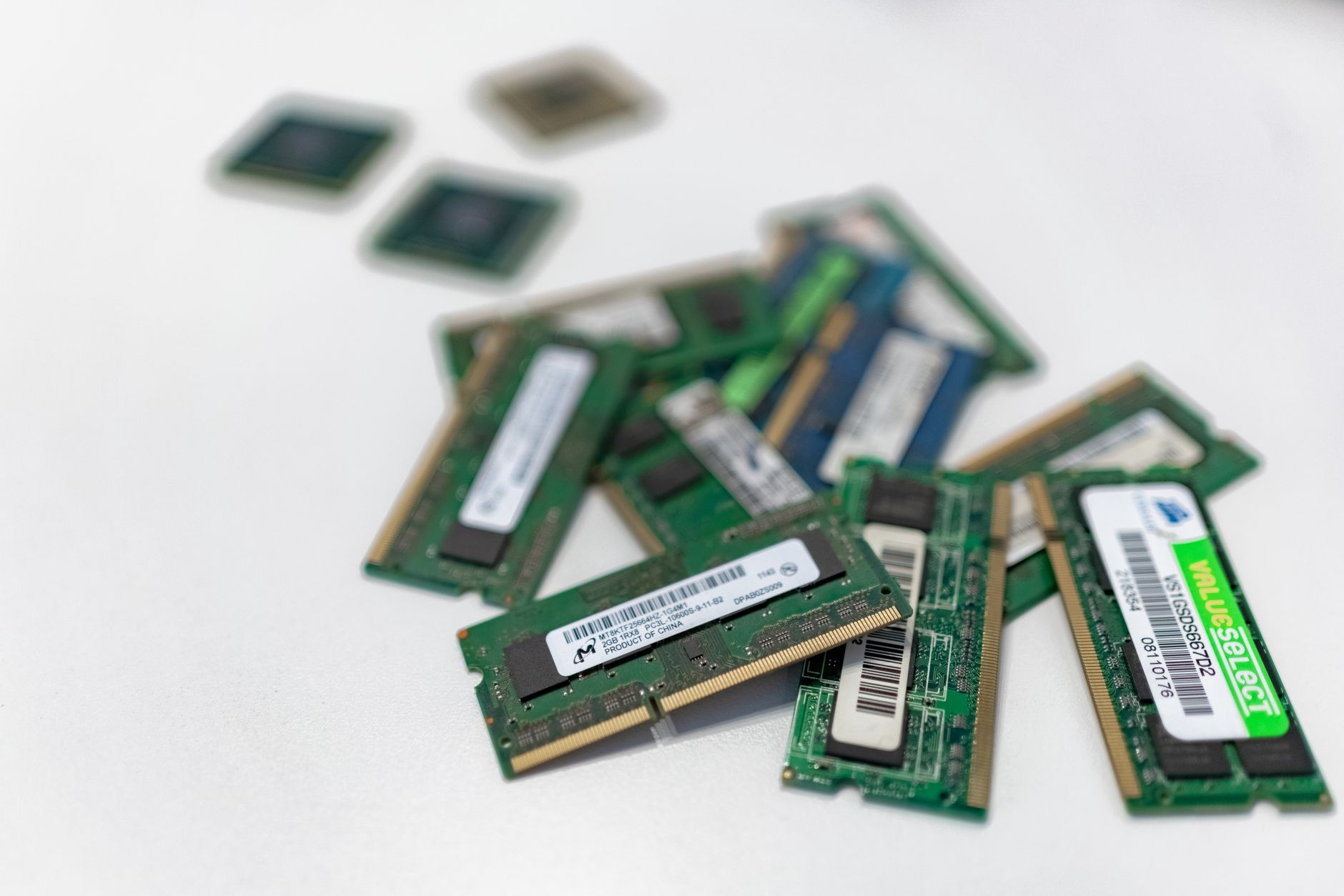
If your laptop has 4 GB or 8 GB of RAM and you're running Windows 11 with a browser, the truth is blunt: you don't have enough memory. Windows 11 itself uses 3–4 GB at idle, leaving almost nothing for your browser. Upgrading to 16 GB of RAM costs €30–€60 for the modules and about an hour of labour at a repair shop like ours. Most laptops under five years old can be upgraded — we check this for free at Campoverde Repair. This is the fix that permanently ends the freezing for heavy users, full stop.
7. Replace a Failing or Full Hard Drive — When the Problem Is Storage, Not RAM
If your C: drive is more than 85% full, or if it's an old spinning HDD rather than an SSD, Windows has nowhere to put that virtual memory overflow — and the system freezes. Run Disk Cleanup to clear temporary files (Start → type "Disk Cleanup"), and check your free space in File Explorer. If you're on an HDD, upgrading to an SSD is the single biggest performance improvement you can make to an old laptop — boot times drop from 90 seconds to under 15, and tab freezing caused by slow page file access disappears almost entirely. An SSD swap at Campoverde Repair typically costs €50–€90 including the drive and data transfer.
How We Chose These Fixes — and How to Pick the Right One for You
These seven solutions come from real-world repair and support work on the Costa Blanca — not from a tech blog written by someone who's never touched a screwdriver. We prioritised fixes that are free or cheap, reversible, and proven to work on the ageing laptops most of our customers actually own (think 5–8 year old HP, Dell, and Lenovo machines running Windows 11 on 8 GB of RAM).
Here's the quick decision guide:
- Freezing started recently with no hardware changes? → Start with fixes 1, 2, and 5 (software and drivers).
- Always been slow, especially with multiple tabs? → Go straight to fix 6 (RAM upgrade).
- Laptop is old and slow even with one tab open? → Fix 7 (SSD) is your answer.
- You're a tab hoarder and proud of it? → Fix 3 (OneTab or lighter browser) is your best friend.
- Drive nearly full? → Run Disk Cleanup and increase the page file (fixes 4 and 7 together).
Don't let a chain store tech tell you the machine is "too old" before you've tried these. In our experience, a well-maintained 6-year-old laptop with a RAM upgrade and an SSD outperforms a brand-new budget laptop from a supermarket shelf every single time.
Key Takeaways
- Enable Memory Saver or Sleeping Tabs in your browser first — it's free, takes 30 seconds, and often cuts RAM use by 30%.
- Task Manager is your diagnostic tool — if something is eating RAM before you open a single tab, kill it and disable it at startup.
- 8 GB of RAM is the minimum for Windows 11 plus a browser — if you have less, or exactly 8 GB with heavy use, upgrading to 16 GB stops freezing permanently.
- A full or slow hard drive causes freezing too — keep at least 15% of your drive free, and consider an SSD upgrade if you're still on a spinning disk.
- For most users on the Costa Blanca running an ageing laptop, the combination of enabling Memory Saver and upgrading to 16 GB RAM solves the tab-freezing problem completely and costs less than €80 all in.
Bottom line: For the most common situation — an expat or local professional on a mid-range Windows laptop with 8 GB of RAM — enabling your browser's built-in memory saver and booking a RAM upgrade at Campoverde Repair is the fastest, cheapest, and most permanent fix you'll find. Stop fighting your machine. Give it what it needs.
Frequently asked questions
Why does my Windows laptop freeze when I open too many browser tabs?
Each browser tab consumes RAM and CPU resources, and when your system runs out of available memory, Windows either grinds to a halt or freezes entirely. On a laptop with 8 GB of RAM running Windows 11, the operating system alone uses 3–4 GB at idle, leaving very little headroom for a browser with multiple tabs open.
How much RAM do I need to stop my browser from freezing in 2026?
16 GB of RAM is the practical minimum for comfortable multi-tab browsing on Windows 11 in 2026. If your laptop currently has 4 GB or 8 GB, upgrading to 16 GB is the single most effective fix for tab-related freezing and typically costs €30–€60 for the parts plus labour.
Does Chrome use more RAM than other browsers?
Yes — Google Chrome is consistently one of the heaviest browsers for RAM usage. Switching to Firefox with strict mode, or using the OneTab extension in Chrome, can reduce browser memory consumption by up to 95% compared to having all tabs open simultaneously.
Can a full hard drive cause my laptop to freeze when browsing?
Absolutely. Windows uses free hard drive space as virtual memory (a page file) when RAM runs out, and if your drive is over 85% full, there's nowhere for that overflow data to go — causing hard freezes. Keeping at least 15% of your drive free and upgrading to an SSD can eliminate this problem.
What is the quickest free fix for a laptop that freezes with multiple tabs open?
The fastest free fix is enabling Memory Saver in Chrome (Settings → Performance → Memory Saver) or Sleeping Tabs in Microsoft Edge (Settings → System and Performance). This puts inactive tabs to sleep and can free up 30% or more of the RAM your browser was consuming, often stopping the freezing immediately.
Computer trouble on the Costa Blanca?
30+ years of repair experience — on-site within 30 km and remote worldwide. Tell me what's wrong and I'll sort it.
Get help now →Photos via Pexels