
How to Stop Apps from Draining Your iPhone Battery So Fast
App-related battery drain is the single most common cause of an iPhone dying before the end of the day. It's not always a dead battery cell that needs replacing — most of the time, one or two rogue apps are hammering your processor and radio in the background while you're not even looking at your screen. Fix the apps first. Then talk about hardware.
The Situation: "My iPhone Is Rubbish — I Need a New One"
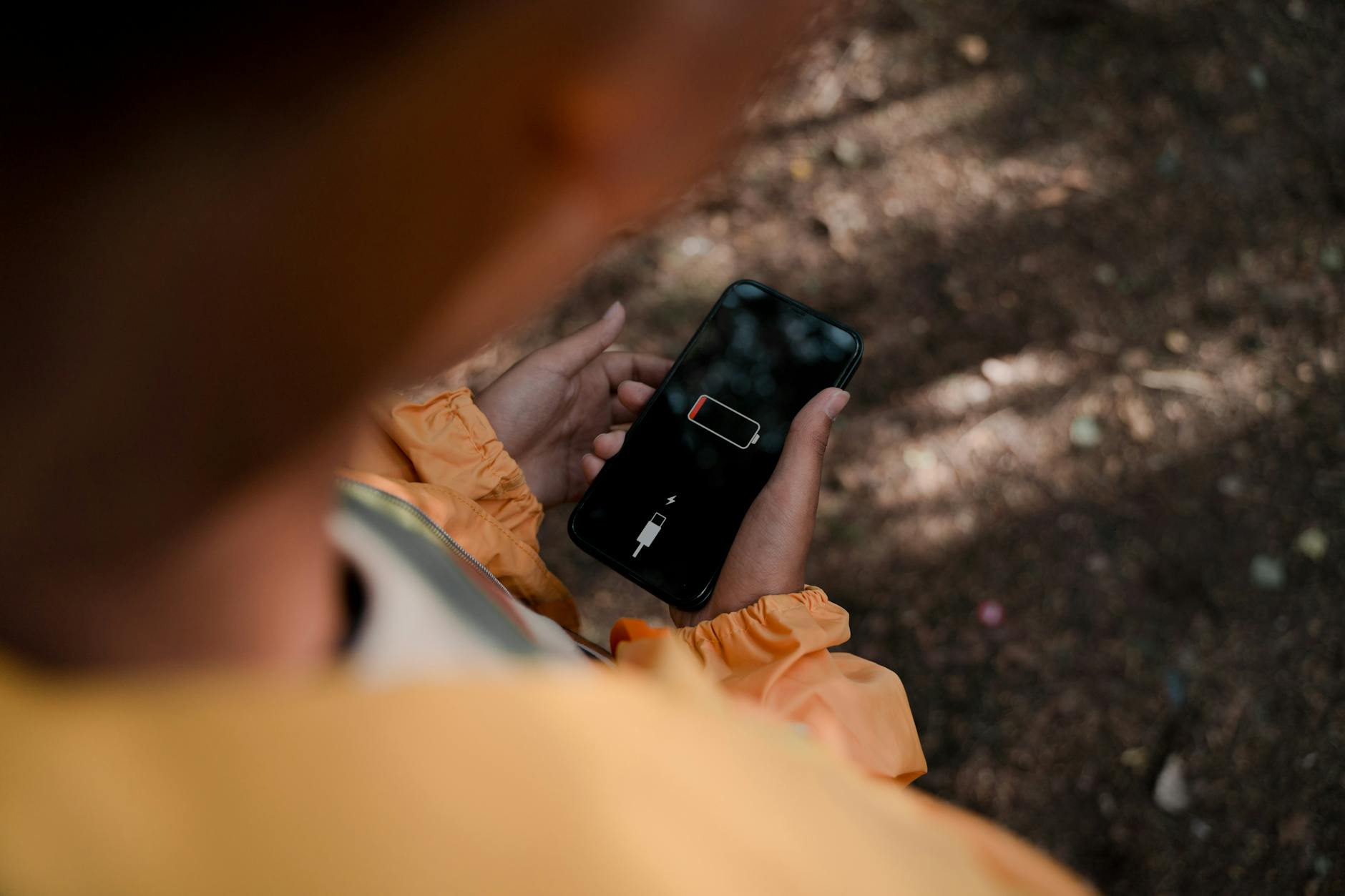
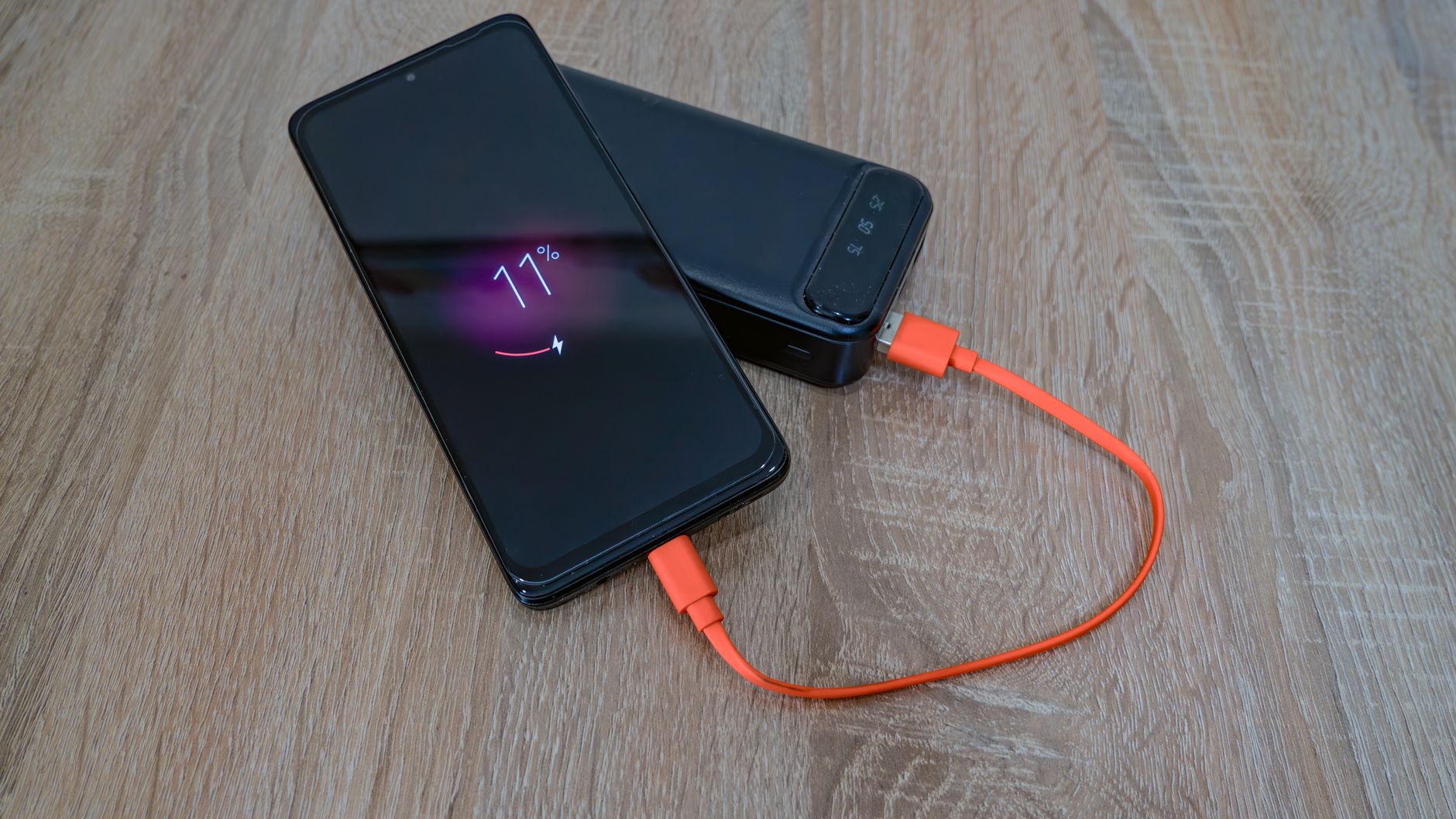
A British client — retired, lives up in the hills near Torrevieja, uses her iPhone 13 for WhatsApp, email, and the odd Facebook scroll — walked into our workshop last spring with her phone plugged into a power bank. At 11am. The phone had left the charger at 7am at 100%. By 10:30 it was at 19%.
She'd already been to a well-known chain store in a local retail park. Their verdict: the battery was "worn out" and needed replacing. Cost quoted: €89. She wasn't convinced, which is the only reason she ended up with us instead.
The iPhone 13 is not an old phone. A battery on a three-year-old device shouldn't be completely dead unless someone has been charging it wrong for years or the thing has been baking in the car every August — which this one hadn't. Something else was going on.

The Diagnosis: Finding What Was Actually Eating Her Battery
First thing we always do: go to Settings → Battery and scroll down to the battery usage by app. Not the headline percentage. The list underneath — specifically the column that shows activity in the background.
On her phone, Facebook had consumed 34% of her battery in the last 24 hours. WhatsApp was at 18%. Together, those two apps — neither of which she had open for more than 20 minutes that morning — had eaten over half her charge before mid-morning. Facebook alone was showing more background activity than screen-on activity. That means it was doing more work while she wasn't using it than while she actually was.
Then we checked three more things that most people — and apparently most chain-store technicians — never bother with:
- Background App Refresh: Settings → General → Background App Refresh. It was ON for every single app. Every app she'd ever installed was quietly checking for updates, refreshing feeds, and pinging servers 24 hours a day.
- Location Services: Settings → Privacy & Security → Location Services. Facebook was set to Always. So was a shopping app she hadn't opened in four months. "Always" means the GPS radio stays active continuously — one of the most power-hungry things an iPhone can do.
- Push email: Her email was set to Push, fetching new messages the instant they arrived on the server, constantly keeping a data connection alive. For someone who gets maybe 12 emails a day, this is complete overkill.
Battery health? 91%. Perfectly fine. The battery was not the problem. The apps were.
The Fix: What We Actually Changed
We made six specific changes — nothing exotic, nothing that required wiping the phone or paying anyone a cent.
1. Kill Background App Refresh for the greedy ones
Go to Settings → General → Background App Refresh. You can turn it off globally, or — better — leave it on for apps that genuinely need it (like Maps or your calendar) and switch it off for social media, shopping, and news apps. Facebook, Instagram, TikTok, Twitter/X: all off. They'll update the second you open them. That's soon enough.
2. Demote Location Services
Go to Settings → Privacy & Security → Location Services. Tap each app and ask yourself honestly: does this need to know where I am when I'm not using it? For 90% of apps, the answer is no. Change Always to While Using the App or, for apps like Facebook, set it to Never. The GPS chip is a battery killer. Don't leave it running for apps that have no legitimate reason to track your movements around the clock.
3. Switch email from Push to Fetch
Settings → Mail → Accounts → Fetch New Data. Turn Push off. Set Fetch to every 30 minutes — or even Manually if you're not waiting on urgent messages. Your emails will still arrive. You'll just get them slightly later, and your battery will thank you dramatically.
4. Turn off notifications for apps that don't deserve them
Every notification wakes your screen, fires your processor, and lights up your radio. Go to Settings → Notifications and be ruthless. If an app is sending you notifications you routinely swipe away without reading — disable them. You're not missing anything except battery drain.
5. Enable Low Power Mode as a habit, not a panic move
Most people only switch on Low Power Mode when they're already at 20%. Flip it on when you know you're going to be away from a charger all day. Settings → Battery → Low Power Mode, or just ask Siri. It reduces background activity, dims the screen slightly, and can add two to three hours of real-world usage without you noticing any difference in the things you're actually doing.
6. Check for one rogue app doing something insane
Go back to Settings → Battery and look at the last 10 days rather than 24 hours. If one app is consistently top of the list with a huge background figure, delete it and reinstall it fresh. Occasionally an app gets stuck in a loop — constantly crashing and restarting in the background, burning through battery doing absolutely nothing useful. A fresh install fixes it almost every time.
The Result: Concrete, Measurable, Immediate
We handed the phone back. She texted us the next morning. Off the charger at 7am, it was at 74% by 10:30am — the same window where the previous day it had been at 19%. No new battery. No replacement phone. No €89. Fifteen minutes of settings changes.
Facebook's background activity had dropped from 34% of daily battery use to under 3%. Location Services was no longer running GPS continuously for four apps she barely used. Email was fetching every 30 minutes instead of hammering the server in real time. The phone behaved like a phone should have from the beginning.
The Lesson: Your Battery Isn't the Problem. The App Ecosystem Is.
Apple makes excellent hardware. What Apple also does — and they're not alone in this — is allow a default app ecosystem that is aggressively configured to serve app developers, not your battery life. Background refresh exists because social media companies want their engagement metrics running even when you've put the phone down. Push notifications exist because marketers want your screen lighting up constantly. "Always" location access exists because data brokers will pay for your location history.
None of that is set up for your benefit. You have to change it manually, because the defaults are not your friend.
The next time someone tells you your iPhone battery is dying and needs replacing — especially if the phone is under four years old and battery health is above 80% — push back. Ask them to show you the battery usage breakdown by app first. Nine times out of ten, the battery itself is fine. It's being drained by software you didn't configure and probably barely use.
Key Takeaways
- Check Settings → Battery first: The app-by-app breakdown will show you exactly which apps are consuming your charge in the background — this is always the starting point.
- Background App Refresh is the biggest silent killer: Turn it off for social media, shopping, and news apps — they don't need it and you won't notice the difference.
- "Always" location access is a GPS radio running constantly: Change it to "While Using" or "Never" for any app that doesn't have a genuine real-time navigation purpose.
- Push email is overkill for most people: Switching to 30-minute Fetch can add a noticeable chunk of battery life back to your day.
- Battery health above 80% is not your problem: If a technician wants to replace your battery without checking your app settings first, go somewhere else.
Frequently asked questions
Why is my iPhone battery draining so fast all of a sudden?
A sudden increase in battery drain is almost always caused by an app that updated recently and is now running more aggressively in the background. Go to Settings → Battery and look at the breakdown by app — the culprit is usually obvious. Reinstalling the top offender fixes it in most cases.
Does Background App Refresh really drain iPhone battery?
Yes — significantly. Background App Refresh allows apps to continuously fetch data, update content, and run processes even when you're not using them. Social media and news apps are the worst offenders. Turning it off for those apps can reduce daily battery consumption by 20–35%.
Should I replace my iPhone battery if it's draining fast?
Not before checking your app settings first. If battery health (Settings → Battery → Battery Health) is above 80%, the hardware is not your problem. Rogue apps, Always-on location services, and Push email are responsible for most fast-drain complaints on otherwise healthy iPhones.
Which iPhone apps drain the battery the most?
Facebook, Instagram, TikTok, and other social media apps consistently top the list because they use background refresh, continuous location tracking, and constant server connections. Streaming apps like YouTube and Netflix drain battery quickly during active use. Check Settings → Battery on your own device for your personal top offenders.
Does Low Power Mode make a big difference on iPhone?
Yes — enabling Low Power Mode proactively (not just at 20%) can add two to three hours of real-world battery life by reducing background activity and slightly throttling non-essential processes. You can enable it via Settings → Battery or by asking Siri, and most users report no noticeable impact on day-to-day usability.
Computer trouble on the Costa Blanca?
30+ years of repair experience — on-site within 30 km and remote worldwide. Tell me what's wrong and I'll sort it.
Get help now →Photos via Pexels