

How to Remove a Virus or Malware from Your Windows Laptop Without Losing Your Files
Malware removal on a Windows laptop does not have to mean wiping everything and starting from scratch. In most cases — even serious infections — your files can survive intact if you follow the right steps in the right order. The problem is that most advice online either skips the nuance or pushes you straight toward a factory reset before it's necessary.
Every week someone walks into Campoverde Repair in a cold sweat, convinced their laptop is done for. Nine times out of ten, we get their machine clean and their files safe. Here are the questions we get asked most — answered straight, no waffle.
How Do I Know If My Laptop Actually Has a Virus?
Not every slow laptop is infected, and not every pop-up means malware — but there are reliable warning signs. Watch for: your browser redirecting to sites you didn't choose, antivirus suddenly disabled without you touching it, programs opening on their own, or your CPU running at 100% when you're doing nothing. If two or more of those are happening at once, assume something's wrong and act fast. Denial is your laptop's worst enemy at this point.

Should I Back Up My Files Before Removing the Malware?
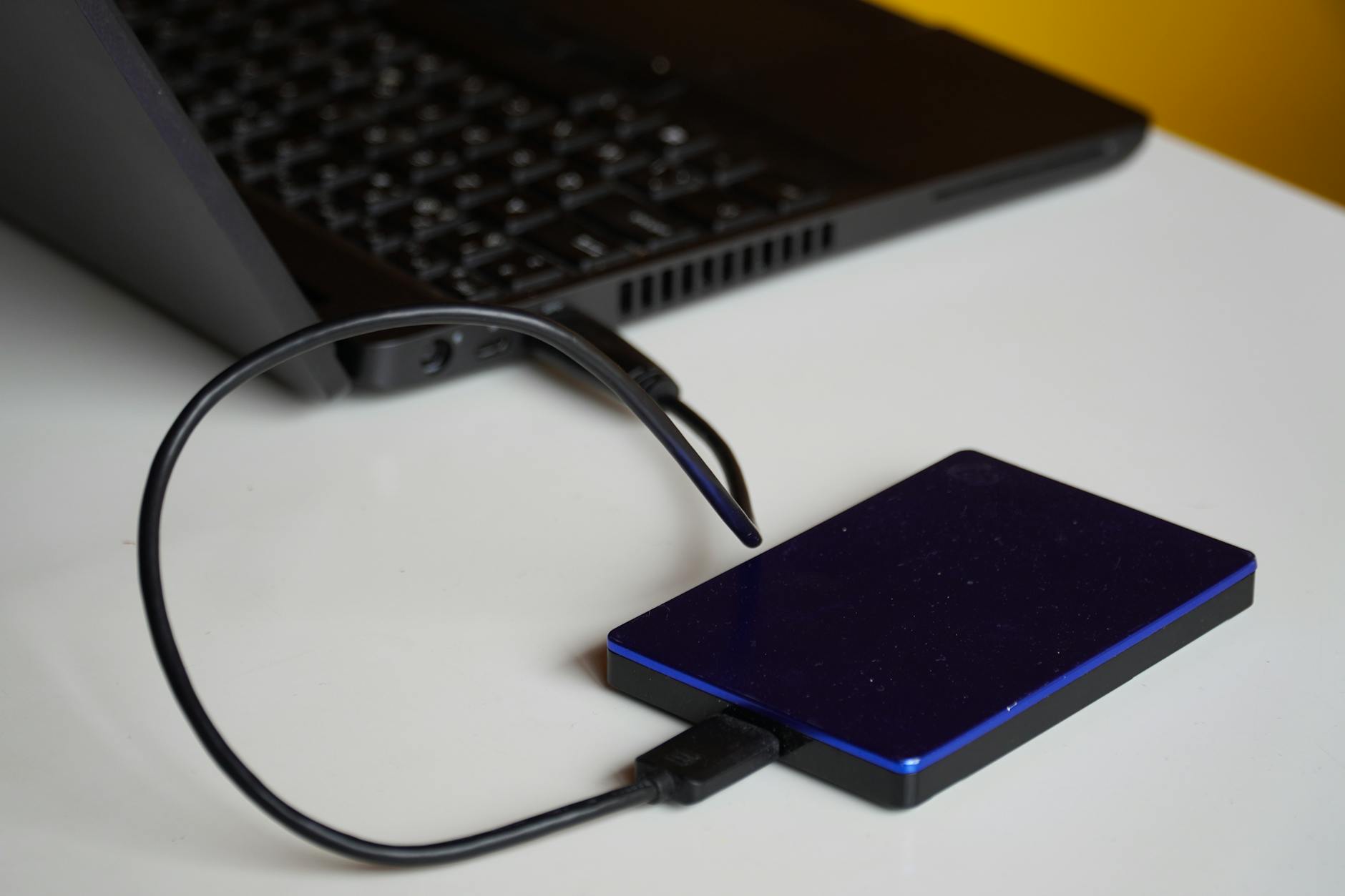
Yes — but carefully. Plugging an external drive into an actively infected machine can spread the infection to that drive, which defeats the entire purpose. If the laptop is still usable, upload your most critical documents, photos, and files to Google Drive or OneDrive first, before you run any removal tools. Cloud storage is harder for most malware to reach. Only copy executables (.exe files) if you're absolutely sure they're clean — infected programs are how malware travels.
Can Windows Defender Remove Malware on Its Own?
Windows Defender — now called Microsoft Defender Antivirus — is significantly better than it was five years ago, and for everyday threats it does a decent job. Run a Full Scan (not Quick Scan) via Windows Security > Virus & Threat Protection > Scan Options. That said, Defender has blind spots, particularly with adware, rootkits, and newer ransomware variants. Think of it as your first line of defence, not your last.
What Free Tools Actually Work for Malware Removal?
Two tools we use at Campoverde Repair on almost every infected machine: Malwarebytes Free and ESET Online Scanner. Run Malwarebytes first — it's brilliant at adware, PUPs (potentially unwanted programs), and trojans that Defender misses. Follow it up with ESET for a second opinion, especially if the infection looks serious. Both are free, both scan without requiring a full installation to run, and neither will conflict dangerously with Defender during a one-time scan.
Do I Need to Run the Scan in Safe Mode?
For mild infections, scanning in normal Windows mode is fine. For anything that's disabling your antivirus, blocking websites, or restarting services after you kill them — yes, boot into Safe Mode with Networking. Malware can't load most of its own processes in Safe Mode, which means your scanner can actually reach and delete files that would otherwise be locked. To get there: hold Shift while clicking Restart, then choose Troubleshoot > Advanced Options > Startup Settings > Restart > F5.
Will Removing the Malware Delete My Personal Files?
A properly run malware scan targets malicious software, not your documents, photos, or personal data. Malwarebytes and Defender quarantine or delete infected program files, not your Word documents or holiday photos stored in your user folders. The exception: if a ransomware infection has already encrypted your files, removing the ransomware won't decrypt them — the damage is done before the removal, not during it. That's why catching it early matters so much.
What If the Virus Comes Back After I've Removed It?
Recurring infections almost always mean one of three things: the original infection wasn't fully cleaned (a rootkit left behind a dropper), you're visiting the same site or opening the same type of attachment that caused it in the first place, or a piece of software you installed is bundling the malware repeatedly. Check your installed programs list (Settings > Apps) and uninstall anything you don't recognise or remember installing. If it keeps coming back, the infection is deeper than a surface scan can reach — that's when you call someone like us.
Is a Factory Reset the Only Option for a Badly Infected Machine?
No — and honestly, a factory reset is often the lazy option that shops use when they don't want to do the actual work. There are professional-grade tools, bootable rescue disks (like Kaspersky Rescue Disk or Avira Rescue System), and offline scanning methods that can clean even severe infections without touching your personal data. A reset should be a last resort, not the first suggestion. If someone quotes you a "wipe and reinstall" within five minutes of looking at your laptop, get a second opinion.
How Do I Stop This from Happening Again?
Three habits will cover 90% of the risk. First, keep Windows Update running — most malware exploits vulnerabilities that patches already fixed months ago. Second, never install software from anywhere other than the developer's official site or the Microsoft Store. Third, stop clicking email attachments from senders you weren't expecting, even if the name looks familiar. Spoofed email addresses are the number one delivery method for malware in 2024. A €5/month password manager and a browser with built-in phishing protection (Edge or Firefox) round it out nicely.
When Should I Just Bring It to a Professional?
Bring it in if: your laptop won't boot normally at all, your files have been encrypted by ransomware, Safe Mode won't load, or you've run three tools and the infection is still active. At that point you're dealing with something that needs offline tools, hardware-level access, or data recovery techniques that go beyond what any guide can walk you through remotely. We're based on the Costa Blanca — drop into Campoverde Repair, and we'll tell you within 20 minutes exactly what you're dealing with and what it will cost. No drama, no upselling a new laptop you don't need.
Still Not Sure Where to Start?
If only one question from this list applies to you right now, make it this one: "Do I need to run the scan in Safe Mode?" Getting that decision right is the difference between a clean machine and a half-finished job that lets the malware reload the moment you restart. Start there, and work through the list.
The Question Most People Get Wrong
It's the backup question — specifically, when to back up. Most people either skip it entirely (terrifying) or back up after the infection is already on the drive they're copying to (also terrifying, just slower). Back up to the cloud first, before you run a single scan. Everything else in this guide follows from that one correct decision.
Key Takeaways
- Back up to cloud storage first — before plugging in any external drive or running any removal tool, to avoid spreading the infection.
- Run Windows Defender's Full Scan first, then follow up with Malwarebytes Free and ESET Online Scanner for a complete clean.
- Boot into Safe Mode with Networking for any infection that's actively blocking antivirus software or restarting after removal.
- A factory reset is a last resort, not a first answer — most infections can be removed without touching your personal files.
- Recurring infections mean a deeper problem — check your installed apps list and, if it keeps coming back, get professional help rather than repeating the same surface scans.
Frequently asked questions
Can I remove a virus from my laptop without losing my files?
Yes, in most cases malware can be removed without deleting your personal files. Antivirus tools like Malwarebytes and Windows Defender target malicious software, not your documents or photos. The exception is ransomware, which encrypts your files before it can be removed — which is why acting early matters.
What is the best free tool to remove malware from a Windows PC?
Malwarebytes Free is widely considered the best free option for removing adware, trojans, and PUPs that Windows Defender misses. Running it alongside ESET Online Scanner gives you a reliable two-pass clean. Both are free, safe to use together with Defender, and don't require a full paid subscription to scan.
Should I use Safe Mode to remove a virus?
For serious infections — especially ones that disable antivirus software or keep restarting after removal — yes, scanning in Safe Mode with Networking is significantly more effective. Malware cannot load most of its own processes in Safe Mode, allowing scanners to reach and delete files that would otherwise be locked. For mild infections, a normal-mode scan is usually sufficient.
How do I know if my laptop has been infected with malware?
Common signs include your browser redirecting to unknown websites, antivirus software being disabled without your input, programs launching on their own, and unusually high CPU usage when the laptop is idle. If two or more of these are happening simultaneously, treat it as an active infection and start the removal process immediately.
Do I need to factory reset my laptop to get rid of a virus?
No — a factory reset is a last resort, not the standard fix. Most malware infections, including serious ones, can be removed using bootable rescue disks and professional offline scanning tools without wiping your personal data. If a repair shop recommends a reset within minutes of looking at your laptop, seek a second opinion first.
Computer trouble on the Costa Blanca?
30+ years of repair experience — on-site within 30 km and remote worldwide. Tell me what's wrong and I'll sort it.
Get help now →Photos via Pexels