

A Windows laptop that won't boot is one of the most common — and most fixable — PC disasters we see at Campoverde Repair. In most cases, the cause is either a corrupted boot record, a failed Windows update, a dying drive, or a combination of all three. Fewer than 20% of machines that come through our door with this symptom actually need a full reinstall — and almost none need a new laptop, no matter what the chain store told you.
The Situation: Tuesday Morning, Torrevieja, Total Panic
María runs a small property rental business from her home office in Torrevieja. She's not a tech person — she doesn't need to be — but she depends on her HP laptop the way most of us depend on electricity. Last October she called us mid-morning, voice tight: her laptop had turned itself off during a Windows update the night before, and now it wouldn't start. Just a black screen with a spinning circle, then nothing. Over and over.
She'd already tried turning it off and on again — obviously. She'd left it overnight in case it was "still updating." She'd even called a family member who is apparently "good with computers," who told her it was dead and she needed to buy a new one. That advice cost her a night of sleep and nearly €600 in a shopping basket she hadn't checked out yet.
She was two days away from sending rental contracts to clients in the UK. Everything — templates, contacts, signed PDFs, years of records — was on that machine. No cloud backup. No external drive. Just the laptop and a lot of anxiety.
The Diagnosis: Don't Assume the Worst Until You've Looked
When a laptop arrives at our workshop refusing to boot, we follow a strict order of investigation. Skipping steps is how you accidentally make things worse — or miss something obvious.
Step 1 — Rule out the simple stuff first
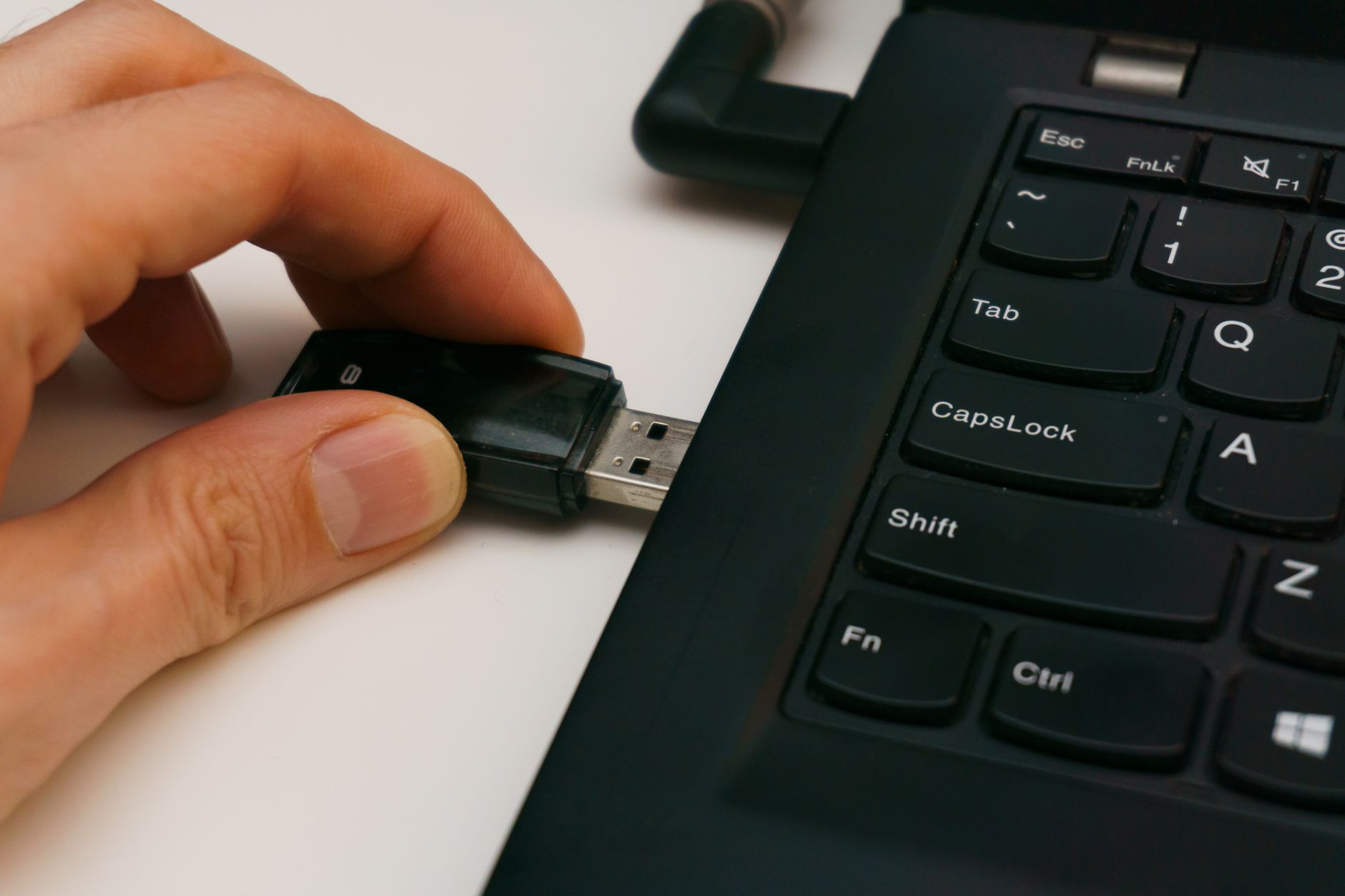
Faulty RAM, a disconnected drive cable, or even a peripheral device (yes, a USB stick left in the port has caused more "dead laptops" than you'd think) can all prevent a clean boot. We disconnected every external device, reseated the RAM, and confirmed the drive was physically recognised in BIOS. It was. Good start.
Step 2 — Read what Windows is actually saying
María's laptop was stuck in what Microsoft calls an Automatic Repair loop — Windows detects a problem, tries to fix itself, fails, reboots, and tries again indefinitely. It's not dead. It's confused. There's a difference, and it's an important one.
To break the loop, we forced the machine into the Windows Recovery Environment (WinRE) by powering it off hard three times in a row during the boot animation. On the fourth attempt, Windows gave us the blue "Recovery" screen instead of the loop. That's your way in.
Step 3 — Run Startup Repair first, but don't trust it blindly
From the Recovery screen: Troubleshoot → Advanced Options → Startup Repair. We ran it. It churned for eight minutes, announced it couldn't fix anything, and gave up. This is completely normal. Startup Repair is a blunt instrument. It works maybe 40% of the time. The real tools are underneath it.
Step 4 — Go to the command line and fix the boot record manually
Back in Advanced Options, we opened the Command Prompt. This is where most people stop because it looks scary. It isn't — you just need the right three commands, typed in order:
bootrec /fixmbr— rewrites the Master Boot Recordbootrec /fixboot— rewrites the boot sector (you may need to typebootsect /nt60 sys /mbrfirst if you get an "Access is denied" error)bootrec /rebuildbcd— scans all drives for Windows installations and rebuilds the Boot Configuration Data
After each command, wait for the confirmation message before typing the next one. Don't rush this. When rebuildbcd finds your Windows installation, type A to add it. Then close the Command Prompt and restart.
Step 5 — If it still won't boot, check the drive health
Sometimes the boot record isn't the problem — the drive itself is failing, and that's why the record got corrupted in the first place. Back in Command Prompt, run chkdsk C: /f /r /x. This scans for bad sectors and attempts repairs. On a standard 500GB drive it can take 45 minutes to two hours. Walk away. Let it finish.
María's drive showed 14 bad sectors. Not catastrophic — but a warning sign that the drive had limited time left. We noted it and moved on.

The Fix: What Actually Worked — and What We Found
The bootrec commands got the machine booting again. First restart: still the repair loop. Second restart after re-running rebuildbcd: the Windows login screen appeared. María's desktop, her files, her rental contracts — all there. Untouched.
Total time from machine-on to Windows-running: two hours and twenty minutes, most of which was waiting for chkdsk. The actual skilled work took less than 15 minutes of typing.
We then did three things before handing it back:
- Cloned the drive to a new SSD — because a drive with 14 bad sectors is a drive on borrowed time, and we weren't sending her home with a ticking clock
- Set up automatic backups to an external USB drive using Windows Backup — ten minutes to configure, endless peace of mind
- Disabled automatic Windows update restarts — because the update that triggered this mess had rebooted her machine while she slept, mid-installation, which is exactly how you corrupt a boot record
She cancelled the new laptop. Saved herself around €550. Her files never left her hands.
The General Lesson: Know the Order, Don't Panic, Back Up
Here's what María's situation teaches every laptop owner on the Costa Blanca — or anywhere else:
The correct order when your Windows laptop won't boot
- Remove all USB devices and external drives — boot again before doing anything else
- Force WinRE by hard-shutting three times mid-boot — don't pay for a recovery USB if you don't need one
- Run Startup Repair — not because it always works, but because it sometimes does and it's one button
- Use Command Prompt + bootrec — this fixes the majority of "won't boot" cases that Startup Repair misses
- Run chkdsk — if bootrec fixes the boot but the drive has bad sectors, you've only delayed the problem
- Clone the drive if chkdsk finds damage — a repaired boot record on a dying drive is a short-term fix at best
When to stop and call someone
If you've done all of the above and Windows still won't load — or if chkdsk reports more than a handful of bad sectors — stop. At that point you're likely looking at a hardware fault: drive failure, motherboard issue, or corrupted system files so deep that a repair install is faster than manual recovery. That's where we come in.
One more thing: if the drive is failing and you haven't backed up your data, do not keep rebooting. Every reboot on a dying drive risks writing over the sectors that hold your files. Power it off, bring it to us, and let us extract the data before attempting any repair.
Key Takeaways
- Most non-booting Windows laptops are not dead — they have a corrupted boot record or a looping repair cycle, both of which are fixable without reinstalling Windows.
- The bootrec commands (fixmbr, fixboot, rebuildbcd) resolve the majority of boot failures caused by failed updates or sudden power loss.
- Always run chkdsk after fixing the boot record — if the drive is failing, you need to know before you trust it with your data again.
- A drive with bad sectors needs to be cloned and replaced, not just repaired — bad sectors multiply, and the next failure won't warn you first.
- Automatic backups are a ten-minute setup that can save you hundreds of euros and years of irreplaceable files. There is no excuse not to have them.
The broader truth is this: most of the laptop "deaths" we reverse at Campoverde Repair were declared fatal by someone who didn't look closely enough, or who was more interested in selling a replacement than saving the original. A blinking cursor or a black screen is almost never the end of the story. It's usually just the beginning of a diagnosis — and more often than not, it has a happy ending. You just need to know which questions to ask of the machine before you give up on it.
Frequently asked questions
Why does my Windows laptop keep restarting and won't boot past the repair screen?
Your laptop is stuck in an Automatic Repair loop — Windows detects a problem, tries to fix itself, fails, and reboots. This is almost always caused by a corrupted boot record from a failed update or sudden power cut. You can break the loop by forcing the Windows Recovery Environment (WinRE) with three hard shutdowns mid-boot, then using bootrec commands from the Command Prompt.
Can I recover my files if my Windows laptop won't turn on?
In most cases, yes — the files are still on the drive even if Windows won't load. If the drive is physically intact, a technician can connect it externally or boot from a live USB to access and copy your data before attempting any repair. Do not keep rebooting a failing drive, as repeated restarts can cause further data loss.
What does bootrec /rebuildbcd do and is it safe?
The bootrec /rebuildbcd command scans your drives for Windows installations and rewrites the Boot Configuration Data (BCD), which tells your computer how to start Windows. It is safe to run from the Windows Recovery Environment Command Prompt and does not delete or alter your personal files. It's one of the most effective fixes for a laptop that won't boot after a failed update.
How long does chkdsk take on a laptop?
On a standard 500GB hard drive, chkdsk /f /r /x can take anywhere from 45 minutes to over two hours depending on drive speed and how many errors it finds. On an SSD the process is significantly faster, often completing in under 20 minutes. The key is to let it finish completely — interrupting it mid-scan can cause additional corruption.
Should I buy a new laptop if Windows won't boot?
Almost certainly not — at least not until a technician has diagnosed the machine properly. The vast majority of non-booting Windows laptops have a fixable software or boot-record issue that costs a fraction of a new device to resolve. Even hardware faults like a failed hard drive usually mean replacing just the drive (€50–€100), not the whole machine.