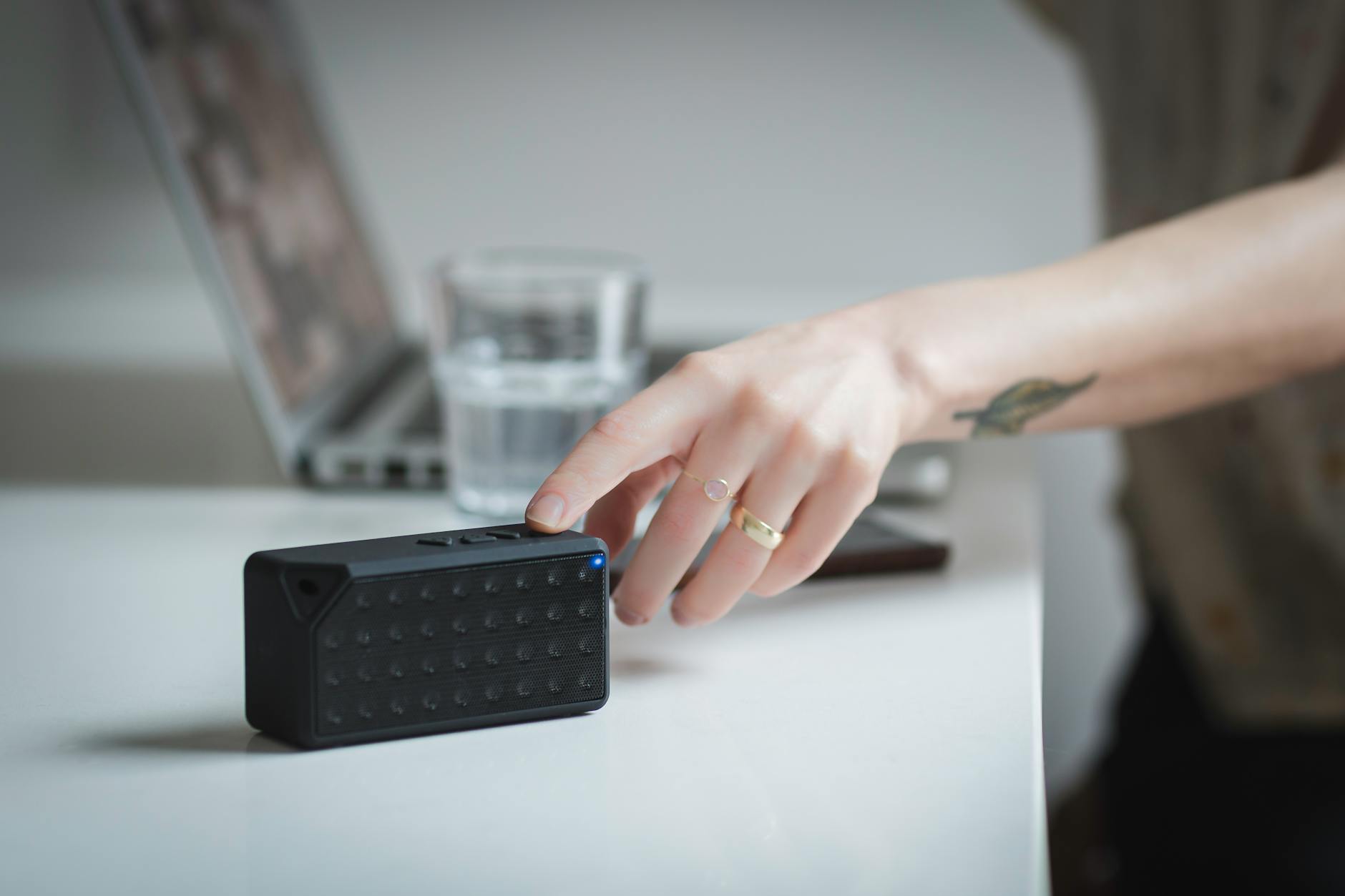

How to Fix a Windows Laptop That Won't Connect to a Bluetooth Device
A Windows laptop that refuses to connect to a Bluetooth device — a speaker, headphones, mouse, keyboard, whatever — is almost never a hardware failure. In 90% of cases it's a driver issue, a Windows setting that quietly flipped itself, or a pairing conflict that clears in 30 seconds. Before you panic, read this.
Why Is Everyone So Confused About Bluetooth Problems on Windows?
Because Windows gives you the least useful error messages on the planet. "Can't connect to this device" or "Pairing unsuccessful" tells you absolutely nothing. It could be a dead driver, a power-saving setting strangling your adapter, a device stuck in another laptop's memory, or a Windows Update that silently broke everything last Tuesday night. The symptom looks the same regardless of the cause — and that's why people spend hours chasing the wrong fix.

Is Bluetooth Actually Turned On — Properly?
Sounds obvious. It's not. Windows has two separate Bluetooth switches and you need both on. First, hit Settings → System → Bluetooth & devices and make sure the toggle is blue. Second, check that Airplane Mode isn't active (Settings → Network & Internet → Airplane Mode). Airplane Mode kills Bluetooth even when the toggle looks on. Also check your physical keyboard shortcut — many laptops have an Fn key that disables wireless adapters entirely.
Does Restarting Actually Fix Bluetooth Problems?
More often than you'd think — but only a full restart, not a shutdown. Windows 10 and 11 use Fast Startup by default, which means "Shut Down" doesn't fully power off the machine; it hibernates the kernel. Your Bluetooth adapter never gets a proper reset. Go to Start → Power → Restart (not Shut Down), wait for it to fully reboot, and try pairing again before you do anything else.
What If the Bluetooth Device Doesn't Appear in the List at All?
Your device either isn't in pairing mode or Windows has stopped scanning. Put the Bluetooth device into pairing mode — hold the button until the light flashes rapidly, every device is slightly different so check the manual. Then in Windows, click Add device → Bluetooth and give it 20–30 seconds. If nothing appears, open Device Manager (right-click the Start button), expand the Bluetooth section, and check if your adapter is even listed. A yellow warning triangle next to it means a driver problem — skip straight to the driver question below.
Could a Bad or Outdated Driver Be the Real Problem?
Yes — and this is the most common cause we see at Campoverde Repair. Windows Update often installs a generic Microsoft Bluetooth driver that's incompatible with your specific adapter. Open Device Manager → Bluetooth, right-click your Bluetooth adapter, and choose Update driver → Search automatically. If that finds nothing useful, go to your laptop manufacturer's website (Dell, HP, Lenovo, ASUS, etc.) and download the Bluetooth driver directly for your exact model. Generic drivers from Windows Update are not always the right tool for the job.
Alternatively, if problems started right after a Windows Update, right-click the adapter in Device Manager → Properties → Driver → Roll Back Driver. This single click has saved hours of frustration for dozens of our customers on the Costa Blanca.

Is Windows' Power Management Quietly Killing Your Bluetooth?
Almost certainly, if the connection drops randomly after a few minutes. Windows is allowed — by default — to turn off your Bluetooth adapter to save power. Open Device Manager → Bluetooth, right-click your adapter, go to Properties → Power Management, and uncheck "Allow the computer to turn off this device to save power." Do the same for any Bluetooth-related entries under USB controllers. This setting is the silent killer of stable Bluetooth connections on laptops running on battery.
What Does "Remove Device and Re-Pair" Actually Do?
When a pairing goes wrong once, Windows remembers the broken connection and keeps trying to use it. Removing the device clears that corrupted handshake data. Go to Settings → Bluetooth & devices, find the device in the list, click the three dots next to it, and choose Remove device. Then put your Bluetooth device back into pairing mode from scratch and add it fresh. This solves the "it connected before but now it won't" problem in the majority of cases — don't skip this step just because it feels too simple.
Can Other Devices or Wi-Fi Interfere With Bluetooth?
Absolutely. Bluetooth runs on the 2.4 GHz frequency — the same one your Wi-Fi router, microwave, baby monitor, and half the gadgets in a modern home use. If you're sitting close to your router and experiencing drops or failed connections, try moving a few metres away or switching your router to the 5 GHz band for Wi-Fi. Also, if you have multiple Bluetooth devices nearby (especially phones with lots of paired gear), they can compete for the same channel and cause connection failures.
Should You Run the Windows Bluetooth Troubleshooter?
Run it, but don't bet the house on it. Go to Settings → System → Troubleshoot → Other troubleshooters and run the Bluetooth troubleshooter. Windows will sometimes automatically fix a stuck service or re-register the adapter. More often it'll tell you "no issues found" while the problem is screaming in plain sight. It's worth 60 seconds of your time, but it's a starting point, not a solution. The real fixes are the driver and power management steps above.
What If Nothing Works — Is the Bluetooth Adapter Actually Dead?
Hardware failure is rare on a laptop less than five years old, but it happens — especially after liquid damage, drops, or a botched Windows reinstall. To test properly, try a cheap USB Bluetooth dongle (under 10 euros on Amazon). If the dongle pairs immediately, your internal adapter is faulty. If the dongle also fails, it's a software or Windows configuration issue, not hardware. At Campoverde Repair, we can run a full hardware diagnostic and tell you within the hour whether you're dealing with a dead adapter or a fixable software mess.
Still Unsure Where to Start?
Go straight to the driver question — "Could a bad or outdated driver be the real problem?" — and work from there. In our experience fixing laptops across the Costa Blanca, the Bluetooth driver combined with the power management setting accounts for well over 70% of all Windows Bluetooth failures. Fix those two things first, and you'll save yourself hours of digging through forums.
The One Question Most People Get Wrong
Everyone obsesses over whether the Bluetooth device is faulty. They test it on someone else's phone, it works fine, they conclude "Windows is broken" — and then they factory reset their laptop or take it to a chain store that charges 80 euros to reinstall Windows. The device being fine doesn't mean Windows is catastrophically broken. It means a driver, a setting, or a pairing conflict needs five minutes of attention. Don't nuke your machine because a checkbox was ticked wrong.
Key Takeaways
- Restart properly: Use Restart, not Shut Down — Fast Startup prevents a full Bluetooth adapter reset on most Windows laptops.
- Driver first: A wrong or outdated Bluetooth driver from Windows Update is the single most common cause of connection failures — always grab the driver from the manufacturer's website.
- Kill power management: Uncheck "Allow the computer to turn off this device to save power" in Device Manager or your connection will keep dying randomly.
- Remove and re-pair: A corrupt pairing entry in Windows will keep failing — delete the device and pair from scratch before assuming anything is broken.
- Test with a USB dongle: If every software fix fails, a USB Bluetooth adapter under 10 euros tells you in seconds whether the internal hardware is at fault.
Frequently asked questions
Why does my Windows laptop say 'can't connect to this device' for Bluetooth?
This error usually means a corrupted pairing entry, an outdated Bluetooth driver, or Windows' power management has switched off the adapter. Remove the device from your Bluetooth list, put it back into pairing mode, and re-add it fresh. If that doesn't work, update or reinstall the Bluetooth driver from your laptop manufacturer's website.
How do I fix Bluetooth that keeps disconnecting on a Windows laptop?
The most likely cause is Windows' power-saving setting turning off your Bluetooth adapter automatically. Open Device Manager, right-click your Bluetooth adapter, go to Properties → Power Management, and uncheck 'Allow the computer to turn off this device to save power.' Apply the same fix to any related USB controller entries.
Why is my Bluetooth device not showing up on my Windows laptop?
Either the device isn't in pairing mode or your Bluetooth adapter has a driver problem. Make sure the device is actively broadcasting (light should flash rapidly), then check Device Manager for a yellow warning triangle next to your Bluetooth adapter — that signals a driver issue that needs fixing before anything will pair.
Does reinstalling Windows fix Bluetooth problems on a laptop?
Rarely, and it's almost never necessary. The vast majority of Windows Bluetooth failures are caused by a wrong driver, a power management setting, or a corrupted pairing — all fixable in minutes without reinstalling the OS. Reserve a full reinstall as an absolute last resort after every other fix has genuinely failed.
How do I know if my laptop's Bluetooth adapter is broken or just a software problem?
Plug in a cheap USB Bluetooth dongle — if it pairs immediately with your device, the internal adapter is likely faulty. If the dongle also fails, the problem is software or Windows configuration, not hardware. A physical Bluetooth adapter failure is rare on laptops under five years old unless there's been liquid or impact damage.
Computer trouble on the Costa Blanca?
30+ years of repair experience — on-site within 30 km and remote worldwide. Tell me what's wrong and I'll sort it.
Get help now →Photos via Pexels