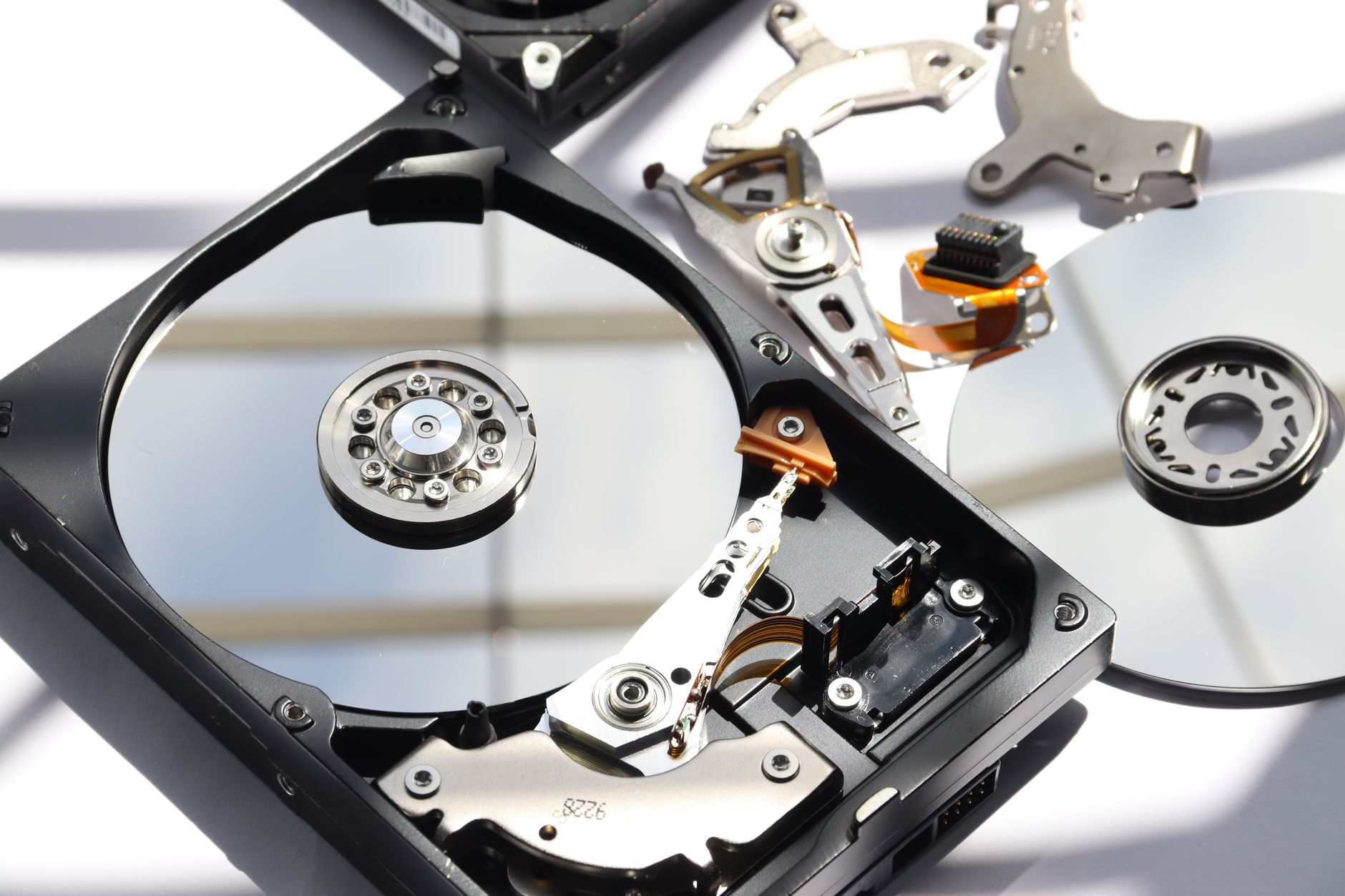

How to Fix a Windows Laptop That Makes a Clicking or Grinding Noise
A clicking or grinding noise from a Windows laptop almost always means one of two things: a failing hard drive or a dying cooling fan. Left alone, either one will eventually kill your machine — the hard drive taking your files with it. Most people can diagnose the source in under ten minutes, and depending on what they find, fix it the same afternoon.
This guide will get you from "what is that terrifying noise?" to a silent, stable laptop. You'll need a small Phillips screwdriver, a USB flash drive (8 GB or larger), and about 60–90 minutes. No advanced tech skills required — just the willingness to follow steps and not panic.
Step 1: Identify Where the Noise Is Actually Coming From
Before you pull anything apart, you need to know your enemy. Put your ear close to the laptop while it's running. There are two danger zones:
- Bottom-centre or bottom-right: That's where the hard drive usually lives. A rhythmic clicking — especially one that happens when the machine is reading or writing files — is the classic sound of a hard drive failing. This is the serious one.
- Bottom-left or rear vent area: That's the cooling fan. A grinding or rattling that speeds up when the laptop is working hard points to a fan with worn bearings or a blade clogged with dust and debris.
Tilt the laptop slightly. If the noise changes or stops briefly when you shift the angle, it's almost certainly the fan. If the noise stays constant and rhythmic regardless of position, assume hard drive until proven otherwise.
Do not ignore a clicking hard drive. Back up your files right now — before anything else. Open File Explorer, copy everything important to an external drive or cloud storage. Do it before you even read Step 2. You have been warned.
Step 2: Run a Hard Drive Health Check
Download CrystalDiskInfo (free, no bloatware if you get it from the official site). Install it, open it, and look at the health status at the top of the window.
- Good (blue): The drive is technically healthy. The noise might be fan-related after all — skip to Step 4.
- Caution (yellow): The drive has recorded errors. It's deteriorating. You're on borrowed time — plan a replacement within weeks, not months.
- Bad (red): Stop using this laptop for anything important immediately. The drive is failing. Go straight to Step 3.
Pay specific attention to the Reallocated Sectors Count and Pending Sector Count values. Any number above zero in those rows is a red flag, even if the overall status still shows "Caution."
If your laptop has an SSD (solid-state drive), it has no moving parts and physically cannot click. If CrystalDiskInfo confirms you have an SSD and you're still hearing a clicking noise, the fan is your culprit — go directly to Step 4.

Step 3: Replace a Failing Hard Drive
A failing hard drive is not a repair job — it's a replacement job. There's no fixing a drive with bad sectors. Here's how to swap it out cleanly:
- Buy a replacement drive. For a laptop, a 2.5" SATA SSD is the best upgrade you can make. They're faster, cooler, silent, and not much more expensive than a mechanical drive. A 500 GB Samsung or Crucial SSD costs around €50–€70. If you're on a tight budget, a bare-minimum mechanical replacement will do, but you'll be back here in two years.
- Clone the old drive (if it still works). Use Macrium Reflect Free to create a sector-by-sector clone of your old drive onto a new one via a USB-to-SATA adapter. This preserves Windows, all your apps, and your settings — no reinstall needed. If the drive is too far gone to clone, you'll need a fresh Windows installation instead.
- Open the laptop and swap the drive. Most Windows laptops have a removable panel on the underside secured by 4–8 Phillips screws. Remove the panel, locate the drive (it'll be in a caddy or bracket), disconnect the SATA cable or slide out the M.2 stick, and seat the new one. Reverse the steps to close up.
- Boot from the cloned drive. If you cloned successfully, Windows should boot normally on the first try. If you did a fresh install, follow the Windows setup wizard from your USB installer.
One critical point: if your laptop uses an M.2 NVMe or M.2 SATA slot rather than a 2.5" bay, make sure you buy the correct form factor. Check your laptop's model number against the manufacturer's specs before ordering.
Step 4: Clean or Replace a Grinding Cooling Fan
A grinding fan is annoying today and a dead processor tomorrow. Overheating caused by a failed fan is one of the most common reasons laptops shut down without warning or throttle to the speed of a 2009 netbook.
- Open the bottom panel the same way as Step 3 — screws out, panel off.
- Blow out the dust. Use a can of compressed air and blast the fan blades and the heatsink fins. Hold the fan blade still with a fingertip while you spray — letting it spin freely from the air pressure can damage the bearings further. You'll probably be horrified by how much dust comes out. That's normal.
- Check the fan blade. Spin it manually with your finger. It should rotate smoothly with minimal resistance. If it wobbles, catches, or feels gritty, the bearing is worn and the fan needs to be replaced — cleaning won't save it.
- Replace the fan if needed. Search your exact laptop model number plus "cooling fan" on eBay or Amazon. Most replacement fans cost €8–€25 and arrive within a few days. Replacement usually involves removing three or four small screws and unplugging a connector — it's one of the easier laptop repairs.
- Reapply thermal paste while you're in there. If you've had the laptop more than three years, the thermal paste between the CPU and heatsink is probably dried out. A €5 tube of Arctic MX-4 and ten minutes of work can drop your CPU temperature by 15–20°C. While the laptop's open anyway, it's a no-brainer.
Step 5: Troubleshooting — When Things Don't Go to Plan
Even clean, methodical repairs throw curveballs. Here's what to do when they do:
- The laptop won't boot after the drive swap. Go into BIOS (usually F2 or Delete at startup) and check that the new drive is listed and set as the first boot device. If the drive isn't detected at all, reseat the connector — an unseated SATA cable is the most common cause.
- Windows says the cloned drive needs repair. Boot from a Windows USB installer, choose "Repair your computer," and run Startup Repair. Nine times out of ten, this fixes a cloned drive that won't boot cleanly.
- The fan still grinds after cleaning. You need a new fan. A clean but worn bearing doesn't magically fix itself with compressed air.
- The noise is gone but the laptop runs hot. You skipped the thermal paste step. Go back and do it — this is not optional on a machine over three years old.
- You can't find the right replacement fan. Search by the fan's own part number (usually printed on a sticker on the fan itself) rather than the laptop model — you'll get more accurate results.
- The drive shows "Bad" in CrystalDiskInfo but you can't clone it. Try ddrescue (Linux live USB) for a slower, more patient clone that recovers data sector by sector. If that also fails, a professional data recovery service is your only option — and yes, it's expensive.
Step 6: Verify the Fix — You'll Know It Worked When…
Power the laptop on and listen. Real silence — not "quieter than before" but actual silence from the bottom of the chassis — is your confirmation. Run the machine for ten minutes, open a few programs, browse the web, maybe play a YouTube video. Put your ear close one more time.
If you replaced the hard drive, reopen CrystalDiskInfo, let it scan the new drive, and confirm it shows Good in blue. If you cleaned or swapped the fan, download HWMonitor and check that CPU temperatures stay below 80°C under load. Anything consistently above that and you have a thermal paste or airflow problem still to solve.
No noise. Normal temperatures. Files intact. That's a fixed laptop — and one that now has a significantly longer life ahead of it than it did this morning.
Key Takeaways
- A rhythmic clicking noise almost always means a failing hard drive — back up your data immediately and run CrystalDiskInfo before doing anything else.
- A grinding or rattling noise that changes with CPU load points to a worn or dust-clogged cooling fan, not the hard drive.
- Replacing a failing HDD with a 2.5" SSD is a direct upgrade — faster, quieter, and typically more reliable than a like-for-like mechanical replacement.
- Thermal paste dries out after 3 years — while the laptop is open for any repair, reapplying it takes 10 minutes and can cut CPU temps by up to 20°C.
- If the drive shows "Bad" and you can't back up yourself, stop and call a professional before the situation gets worse — every extra boot cycle risks more permanent data loss.
Frequently asked questions
Why is my Windows laptop making a clicking noise?
A clicking noise from a Windows laptop almost always indicates a failing mechanical hard drive. This 'click of death' happens when the drive's read/write head repeatedly fails to find its position. Back up your files immediately and run a health check with a free tool like CrystalDiskInfo.
Can a clicking hard drive be repaired without replacing it?
No — a clicking hard drive cannot be repaired through software or cleaning. The clicking indicates physical damage to the drive mechanism, and the only fix is replacement. Focus your energy on recovering the data and installing a new drive, ideally an SSD.
How much does it cost to replace a laptop hard drive on the Costa Blanca?
A replacement 2.5" SSD for a laptop typically costs €50–€70 for the drive itself. Professional fitting and data migration at a local repair shop like Campoverde Repair usually adds a modest labour fee, and the entire job is often completed the same day.
Is a grinding noise from a laptop fan dangerous?
Yes — a grinding fan is a serious problem because a failed fan leads to overheating, which can permanently damage your processor or motherboard. A replacement laptop fan typically costs €8–€25 and is one of the simpler repairs to carry out.
How do I know if it's the fan or the hard drive making the noise?
Listen carefully and tilt the laptop slightly — if the noise changes with the angle or speeds up when the laptop is working hard, it's likely the fan. A rhythmic, mechanical clicking that happens during file access is the signature sound of a failing hard drive. CrystalDiskInfo will confirm the drive's health status in minutes.
Computer trouble on the Costa Blanca?
30+ years of repair experience — on-site within 30 km and remote worldwide. Tell me what's wrong and I'll sort it.
Get help now →Photos via Pexels