
How to Fix a Laptop That Won't Recognise a USB Mouse or Keyboard in Windows 10 or 11
When a laptop refuses to recognise a USB mouse or keyboard in Windows 10 or 11, the cause is almost always one of four things: a dead port, a corrupted or outdated driver, a Windows power management setting that's gone rogue, or a USB controller that needs a kick. Most people can fix it in under 20 minutes without spending a single euro. Here's exactly how we know that — because we fixed it last Tuesday for a client who was about to bin a perfectly good laptop.
The Situation: "My Mouse Just Stopped Working Overnight"
María José runs a small holiday-rental management business out of her home in Orihuela Costa. She came in carrying a mid-range Lenovo IdeaPad, two USB mice in a carrier bag, and the look of someone who hadn't slept properly. Her USB mouse had simply stopped being detected — no cursor movement, no little ding sound from Windows when you plug something in, nothing. She'd already tried both mice, two different cables, and had asked her neighbour's son — who is, apparently, "really good with computers" — and he'd told her she probably needed a new laptop.
She did not need a new laptop. She needed about 25 minutes and someone who actually knew what they were doing.
The symptoms were specific: the USB ports weren't completely dead (a USB stick was detected fine), but neither mouse nor a USB keyboard would register at all. Windows 11, fully updated, no recent hardware changes that she was aware of. The problem had appeared the morning after a Windows Update ran overnight.
The Diagnosis: Chasing the Right Culprit
Windows Update breaking USB HID (Human Interface Device) drivers is more common than Microsoft would like to admit. Before we touched a single setting, we ran through the basics — not because we doubted ourselves, but because skipping steps is how you end up replacing parts that didn't need replacing.
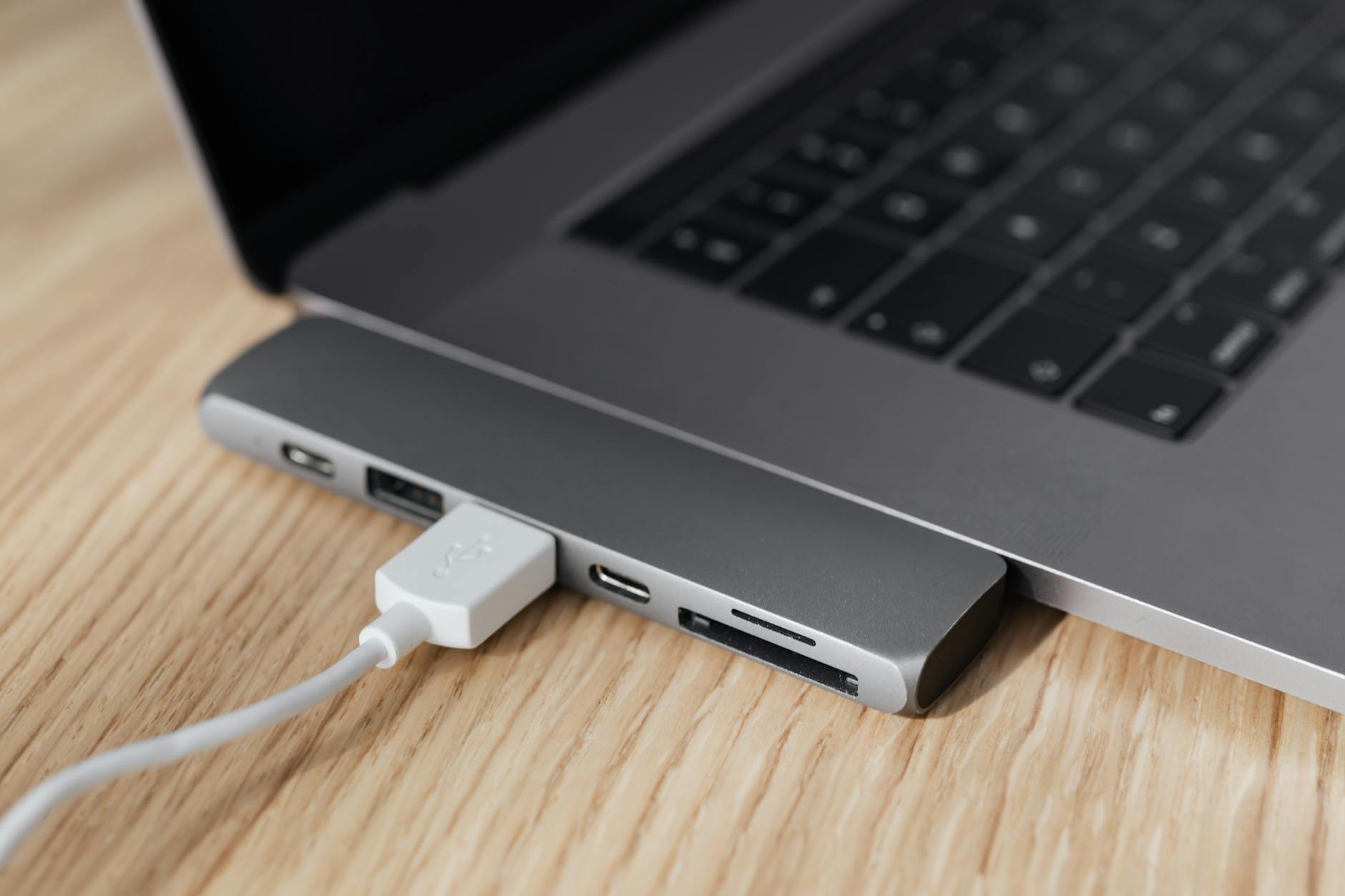
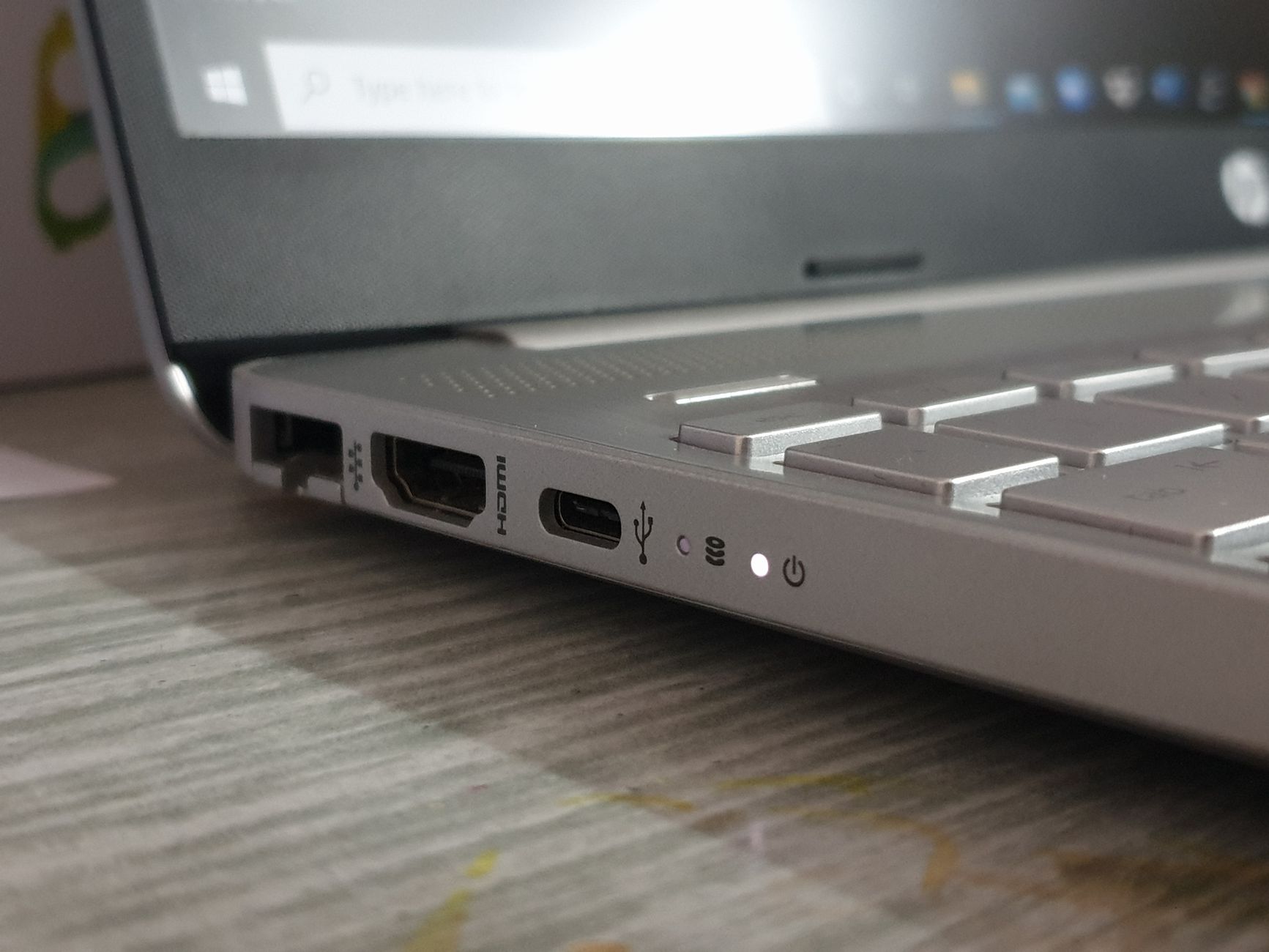
Step 1 — Port elimination. We plugged a USB stick into every port on the machine. All three ports detected the stick. So the ports had power and basic function. A completely dead port means a hardware fault; a port that works for storage but not for input devices points squarely at the driver layer or power management.
Step 2 — Device Manager check. Right-click the Start button → Device Manager → expand Human Interface Devices and Universal Serial Bus controllers. We were looking for yellow warning triangles. We found them: two HID-compliant mouse entries with a yellow exclamation mark, and one USB Root Hub showing "Windows has stopped this device because it has reported problems (Code 43)."
Code 43 is Windows telling you it's thrown its hands up at a USB device. It can mean a hardware fault, but after a Windows Update it almost always means the driver stack got corrupted or the update wrote incompatible settings into the USB controller.
Step 3 — Power Management trap. Right-click each USB Root Hub entry in Device Manager → Properties → Power Management tab. The checkbox "Allow the computer to turn off this device to save power" was ticked. On a laptop this setting can aggressively cut power to USB ports and then fail to restore it properly — especially after an update resets related policies. We unticked every single one.
Step 4 — Driver rollback attempt. Right-click the flagged USB Root Hub → Properties → Driver tab → Roll Back Driver. The option was greyed out. That told us the update hadn't preserved a previous driver version to roll back to. Which meant we had to go further.
The Fix: What Actually Worked
Three things combined to solve this, and the order matters.
1. Uninstall and Reinstall the USB Controller Drivers
In Device Manager, right-click every entry under Universal Serial Bus controllers — every Root Hub, every Host Controller — and select Uninstall device. Do NOT tick "Delete the driver software for this device" unless you want a more complicated afternoon. Once they're all uninstalled, Action → Scan for hardware changes. Windows will reinstall fresh copies of the drivers. Restart the machine immediately after.
On María José's Lenovo, this alone brought one of the two HID entries back to life. The mouse partially worked — cursor moved, but intermittently. Better, but not fixed.
2. Disable USB Selective Suspend
This is the setting most guides skip, and it's the one that bites laptop users hardest.
- Open Control Panel → Power Options → Change plan settings → Change advanced power settings
- Expand USB settings → USB selective suspend setting
- Set both On battery and Plugged in to Disabled
- Click Apply, then OK
USB Selective Suspend is Windows' way of cutting power to idle USB devices to save battery. Sounds sensible. In practice, on certain Intel and AMD USB controller combinations running Windows 11, it causes the controller to suspend a device and then refuse to wake it — particularly HID devices like mice and keyboards that have lower polling activity than, say, a USB hard drive.
3. Update the Chipset and USB Drivers from the Manufacturer — Not Windows Update
This is the step that fully solved it. Windows Update gives you generic Microsoft drivers. They work for most things. For USB controllers on branded laptops, the manufacturer's own drivers are significantly more stable.
We went to Lenovo's support site, entered the exact model number (found on the sticker on the bottom of the laptop), and downloaded the Intel Chipset Device Software and the Intel USB 3.0 eXtensible Host Controller driver directly. Installed both, restarted, and the machine correctly detected both mice, a USB keyboard, and a USB hub — all simultaneously, with zero Code 43 errors.
Total time from walking in the door to fully working laptop: 23 minutes.
What You Should Try at Home — In This Order
If your Windows 10 or 11 laptop won't recognise a USB mouse or keyboard, work through this sequence before you spend a single cent on repairs or replacement:
- Test the port with a USB stick first. If the stick is detected, the port has power — the problem is in the driver or power settings, not the hardware.
- Open Device Manager (right-click Start) and look for yellow triangles under Human Interface Devices and Universal Serial Bus controllers.
- Uninstall every USB Root Hub and Host Controller entry, then scan for hardware changes and restart.
- Disable USB Selective Suspend in your Power Plan's advanced settings — both on battery and plugged in.
- Untick "Allow the computer to turn off this device to save power" on every USB Root Hub in Device Manager → Properties → Power Management.
- Download chipset and USB drivers from your laptop manufacturer's website — not from Windows Update. This step alone fixes the majority of post-update USB failures.
- If none of the above works and the port doesn't detect anything at all, bring it in. A physically damaged USB port or a failed USB controller chip is a hardware job.
The Lesson: Windows Update Is Not Your Friend — But It's Not Your Enemy Either
The neighbour's son was wrong. María José didn't need a new laptop — she needed the right diagnosis. The laptop was three years old, running fine, and worth well over €400 as a working machine. Replacing it because of a driver conflict introduced by a Windows Update would have been an expensive, unnecessary mistake driven entirely by a lack of information.
Windows Update causes USB HID failures more often than Microsoft acknowledges, particularly on Lenovo, HP, and ASUS laptops running Intel Alder Lake or Raptor Lake chipsets under Windows 11. The fix is almost always in the driver stack or the power management layer — not in the hardware. The moment you see a Code 43 error after an update, you're almost certainly looking at a software problem with a software solution.
That said, if you've been through every step above and the USB ports still won't detect HID devices, there's a real possibility of a damaged USB controller IC on the motherboard — especially on laptops that have taken a knock or been used with dodgy third-party chargers that deliver unstable voltage. That's a soldering job. Bring it to us.
Key Takeaways
- A USB port that detects storage but not a mouse or keyboard points to a driver or power management issue, not a dead port.
- Code 43 in Device Manager after a Windows Update almost always means a corrupted or incompatible USB driver — uninstall and reinstall from the manufacturer's site.
- USB Selective Suspend is the hidden setting that silently kills mice and keyboards on laptops — disable it in your power plan's advanced settings.
- Always download chipset and USB drivers from your laptop manufacturer's support page, not from Windows Update.
- If the port detects nothing at all — no stick, no mouse, no keyboard — that's likely a hardware fault and it needs hands-on repair.
Frequently asked questions
Why did my USB mouse stop working after a Windows 11 update?
Windows updates can overwrite or corrupt USB HID (Human Interface Device) drivers, causing your mouse or keyboard to no longer be detected. The fix is usually to uninstall all USB Root Hub entries in Device Manager, restart, and then download the correct chipset drivers directly from your laptop manufacturer's website — not from Windows Update.
What does Code 43 mean for a USB device in Device Manager?
Code 43 means Windows has stopped the USB device because it reported a problem it couldn't recover from. After a Windows Update, this almost always indicates a driver conflict or corruption rather than physical hardware damage. Uninstalling the USB controller drivers and reinstalling from the manufacturer's site resolves it in the majority of cases.
How do I fix USB selective suspend causing my mouse to stop working?
Go to Control Panel → Power Options → Change plan settings → Change advanced power settings, then expand USB settings and set USB selective suspend to Disabled for both On battery and Plugged in. This prevents Windows from cutting power to idle USB devices and failing to wake them — a common cause of intermittent mouse and keyboard dropouts on laptops.
My laptop detects USB drives but not my mouse or keyboard — what's wrong?
If USB storage is detected but HID devices like mice and keyboards are not, the USB port itself is fine — the problem is in the driver layer or power management settings. Check Device Manager for yellow warning triangles under Human Interface Devices and Universal Serial Bus controllers, then follow the driver reinstall and power management steps.
When should I take my laptop to a repair shop for a USB problem?
If none of the software fixes work — uninstalling drivers, disabling USB selective suspend, installing manufacturer drivers — and the port detects absolutely nothing at all, you likely have a hardware fault such as a damaged USB controller chip or broken port. That requires physical repair and you should bring it to a professional.
Computer trouble on the Costa Blanca?
30+ years of repair experience — on-site within 30 km and remote worldwide. Tell me what's wrong and I'll sort it.
Get help now →Photos via Pexels