
How to Fix a Keyboard That Has Stopped Working on a Windows Laptop (7 Fixes That Actually Work)
A laptop keyboard that stops working mid-sentence is one of the most infuriating tech failures you can face — and on the Costa Blanca, where the heat, humidity, and the occasional splash of Estrella can wreak extra havoc on hardware, we see it constantly. The good news: there are 7 proven fixes that resolve the vast majority of dead keyboard cases, and you can work through most of them yourself in under 30 minutes.
This guide is for Windows laptop users who've suddenly lost all or most of their keyboard — whether it happened after an update, a spill, a restart that went wrong, or for apparently no reason at all. Work through these in order. The fixes go from the stupidly simple to the more involved, and at least one of them will almost certainly bring your keyboard back to life.
7 Fixes for a Windows Laptop Keyboard That Has Stopped Working
1. Restart the Laptop — Yes, Really
Before you panic and start Googling replacement keyboards, restart the machine properly — not sleep, not hibernate, a full power-off restart. Windows Update has a nasty habit of half-applying driver changes that leave your keyboard unresponsive until the system completes its cycle. A clean restart resolves this in a surprising number of cases. If your keyboard won't let you hit the Start menu, hold the power button for 10 seconds to force a shutdown, then power back on.
2. Check Whether Filter Keys or Sticky Keys Are Enabled
Windows has built-in accessibility features called Filter Keys and Sticky Keys, and they can make your keyboard behave as if it's broken — slowing input to nearly zero or ignoring keystrokes entirely. Press the Shift key five times in a row; if a dialogue box appears, Sticky Keys is active. To disable both, go to Settings → Accessibility → Keyboard and switch them off. This is an embarrassingly common culprit, especially on laptops used by multiple family members.
3. Update or Roll Back the Keyboard Driver
Right-click the Start button, open Device Manager, and expand the "Keyboards" section. If you see a yellow warning triangle next to your keyboard device, that's your answer — the driver is either corrupted or incompatible. Right-click the device and choose Update driver; if that makes things worse (common after a major Windows update), choose Properties → Driver → Roll Back Driver instead. Rolling back restores the previously working driver version and takes about two minutes.
4. Uninstall and Reinstall the Keyboard Driver
If updating or rolling back the driver didn't help, go one step further: right-click the keyboard device in Device Manager and select Uninstall device. Don't panic — Windows will automatically reinstall a fresh driver the next time you reboot. This clears out any corrupted driver files that were silently causing the problem. It sounds drastic, but it's completely safe and takes less than five minutes including the restart.
5. Run the Windows Keyboard Troubleshooter
Windows 10 and 11 both include a built-in keyboard troubleshooter that can detect and fix a handful of common software conflicts automatically. Navigate to Settings → System → Troubleshoot → Other troubleshooters and run the Keyboard option. It won't catch everything, but it takes 60 seconds and occasionally spots permission or service conflicts that would take you 20 minutes to find manually. Think of it as a quick automated second opinion before you dig deeper.
6. Check for a BIOS/Firmware Update or Reset
Some laptops — particularly HP, Lenovo, and Dell models — have known firmware bugs where the embedded controller that manages keyboard input stops communicating correctly with Windows. Visit your laptop manufacturer's support page, enter your model number, and check whether a BIOS or firmware update is available. Alternatively, try a hard reset: shut down, disconnect the charger, remove the battery if possible, hold the power button for 30 seconds, then reassemble and restart. This drains residual charge from the embedded controller and clears ghost states that software fixes can't reach.

7. Inspect for Physical Damage — Liquid, Debris, or a Disconnected Ribbon Cable
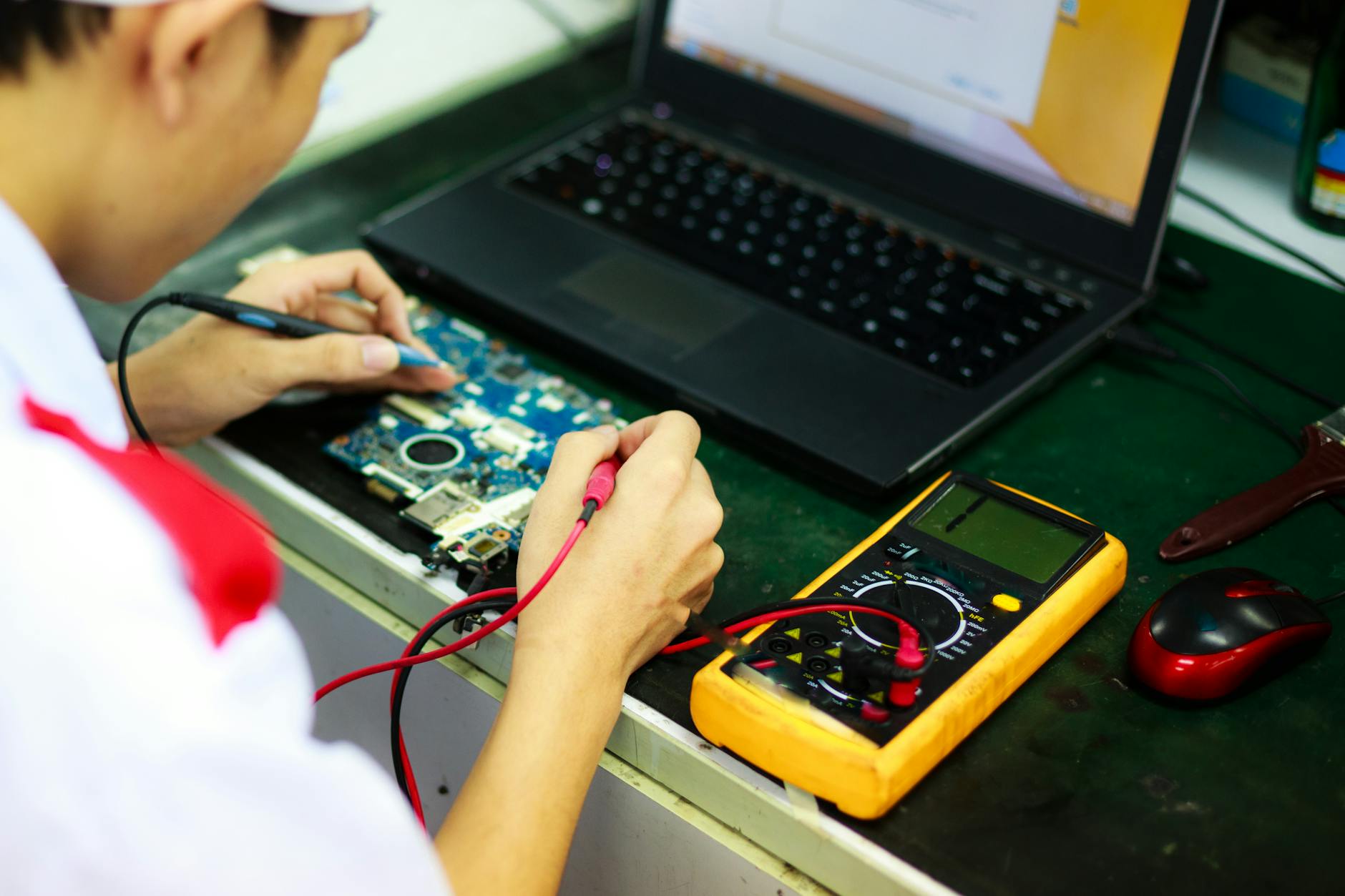
If none of the software fixes work, the problem is almost certainly physical. On the Costa Blanca we see three culprits over and over: spilled coffee or water that has corroded the key contacts; dust, sand, and crumbs jamming the membrane beneath the keycaps; and — especially after a laptop has been dropped or shipped — a partially disconnected ribbon cable between the keyboard and the motherboard. The ribbon cable fix requires opening the bottom panel of the laptop, which is straightforward on most modern machines with a basic Philips screwdriver, but if you're not comfortable doing it yourself, stop here and bring it to us. A disconnected cable takes about 10 minutes to reseat. Corrosion is a different story.
How We Chose These Fixes (And How to Pick the Right One for You)
These seven fixes aren't random — they're ranked by the order we actually work through them here at Campoverde Repair when a keyboard-dead laptop lands on the bench. The logic is simple: start with zero-risk, zero-cost actions and only move towards hardware intervention if the software layer is clean.
To pick the right fix for your situation, ask yourself two questions:
- Did the keyboard stop working right after a Windows Update? Go straight to Fix 3 (roll back the driver) — that's almost always the culprit.
- Did something wet, hot, or heavy happen to the laptop recently? Skip to Fix 7 immediately — software fixes won't help physical damage, and running a laptop with liquid inside it longer than necessary makes the repair more expensive.
- Did it just stop for no apparent reason? Work through Fixes 1 to 5 in order. You'll solve it within the first three, nine times out of ten.
- Is it a specific brand (HP, Lenovo, Dell)? Add Fix 6 to your shortlist early — these brands have documented embedded controller bugs that a BIOS update or hard reset resolves.
If you've worked through all seven and the keyboard is still dead, the keyboard assembly itself has likely failed and needs replacing. On most laptops that's a €30–€80 part plus an hour of labour — not the end of the world, and far cheaper than a new machine.
The Bottom Line
For the most common scenario — a keyboard that stopped working after a Windows Update or for no obvious reason — Fix 3 (rolling back or updating the keyboard driver) solves the problem the majority of the time. It's fast, free, and completely reversible. If you're past that point and nothing is working, bring the laptop into Campoverde Repair. We'll diagnose it the same day, tell you exactly what it'll cost to fix, and we won't charge you just for looking. No call centres, no booking fees, no three-week wait — just your keyboard working again.
Key Takeaways
- A full restart (not sleep or hibernate) fixes keyboard issues caused by incomplete Windows Update cycles — always try this first.
- Filter Keys and Sticky Keys are a silent, common cause of keyboards appearing broken; check Accessibility settings before assuming hardware failure.
- Rolling back a keyboard driver after a Windows Update is the single most effective software fix and takes under two minutes in Device Manager.
- A BIOS hard reset (drain residual power with battery out + 30-second power hold) resolves embedded controller issues that no Windows setting can fix.
- If the keyboard failed after liquid exposure or a drop, skip the software troubleshooting — physical inspection is the only relevant next step.
Frequently asked questions
Why did my laptop keyboard suddenly stop working after a Windows Update?
Windows Updates frequently overwrite or corrupt keyboard drivers, which causes the keyboard to become unresponsive. The fastest fix is to open Device Manager, right-click your keyboard device, and choose Roll Back Driver to restore the previously working version. If roll back is greyed out, uninstalling the driver and restarting will force Windows to reinstall a clean copy.
My laptop keyboard is not working but an external USB keyboard works fine — what does that mean?
This almost always confirms the problem is either a failed internal keyboard assembly or a disconnected ribbon cable between the keyboard and the motherboard — not a Windows software issue. The ribbon cable is a cheap and quick fix if you're comfortable opening the laptop base; otherwise a repair shop can reseat or replace it in under an hour.
Can Filter Keys or Sticky Keys make a keyboard seem completely broken?
Yes — Filter Keys in particular can delay keystrokes so severely that the keyboard appears completely unresponsive. Go to Settings → Accessibility → Keyboard and make sure both Filter Keys and Sticky Keys are switched off. This is one of the most overlooked causes of apparent keyboard failure on Windows laptops.
How much does it cost to replace a laptop keyboard?
On most consumer laptops, the replacement keyboard assembly costs between €25 and €80 depending on the brand and model, plus roughly one hour of labour. It's significantly cheaper than buying a new laptop and is almost always worth repairing unless the rest of the machine is also failing.
Will removing and reinstalling the keyboard driver delete anything from my laptop?
No — uninstalling a keyboard driver through Device Manager only removes the driver software, not any of your files, documents, or programmes. Windows automatically reinstalls the correct driver on the next restart, making this a completely safe troubleshooting step.
Computer trouble on the Costa Blanca?
30+ years of repair experience — on-site within 30 km and remote worldwide. Tell me what's wrong and I'll sort it.
Get help now →Photos via Pexels